MBUX Special Features Guide
Android Auto, Apple CarPlay, full-screen projection and AMG TRACK PACE
Enable wired Android Auto, Apple CarPlay, full-screen smartphone projection and AMG TRACK PACE on Mercedes-Benz MBUX HU6 headunits with MBTools. This quick guide follows the Windows app workflow.
What you need
- A Mercedes MBUX HU6 headunit, a Windows PC with the current MBTools app, and an ENet/DoIP vehicle connection.
- A Raspberry Pi Pico 2 W, a USB-C to Micro-USB Type-B data cable, and a reachable 2.4 GHz Wi-Fi network.
- The required HU6 setup access, Pico commissioning and MBUX coding entitlement on your MBTools account. Hardware and commissioning are separate; choose the coding tier for your intended features.
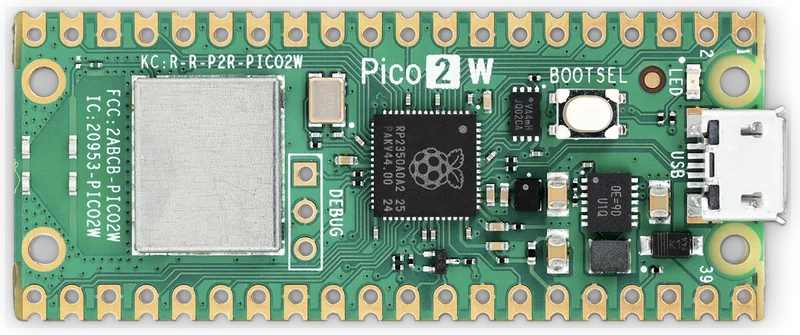
Raspberry Pi Pico 2 W
Micro-USB Type-B plugs into the Pico; USB-C plugs into the car's USB-C data port. For a PC with USB-A ports, use a USB-A data cable or adapter. The cable must support data transfer.
Photo: Raspberry Pi Ltd
Find Raspberry Pi Pico 2 W hardware: Amazon.es · Amazon.de · Amazon.com
Before activating features: Mercedes me must remain disabled for license activations, including wired CarPlay, wired Android Auto and TRACK PACE. Full-screen CarPlay and full-screen Android Auto have no such restriction.
1. Set up the Pico
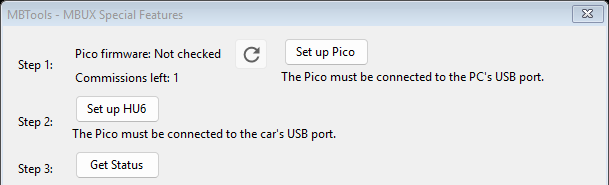
Connect the Pico to the PC with a USB data cable. Open MBUX Special Features and choose Set up Pico. Follow commissioning and firmware prompts. If asked, hold BOOTSEL while reconnecting the Pico. Enter the Wi-Fi details and wait for setup to finish before unplugging it.
2. Connect to the car and read HU6
Move the Pico to the vehicle's USB data port. Keep the PC connected to HU6 through ENet/DoIP, with the configured Wi-Fi network reachable. Select Set up HU6 and wait for confirmation. Select Get Status to read the current features. If setup or the read fails, resolve the error before continuing.
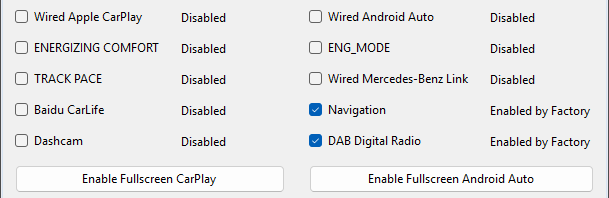
3. Enable Android Auto, Apple CarPlay and AMG TRACK PACE
After Get Status succeeds, select Wired Android Auto, Wired Apple CarPlay and/or TRACK PACE, according to your entitlement. Keep existing enabled features selected unless you intend to disable them. Select all intended license changes for this run, then press Apply once and wait for completion.
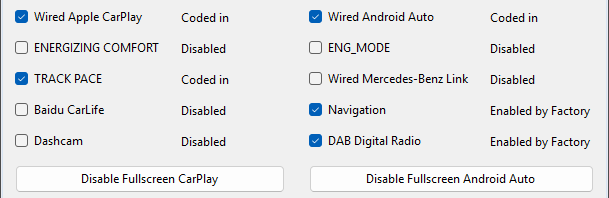
When the operation finishes, use Get Status to read the result. The selected license features should show Coded in; features that were already active from the factory show Enabled by Factory.
4. Enable full-screen Android Auto and CarPlay
If smartphone integration is already enabled, use Enable Fullscreen Android Auto or Enable Fullscreen CarPlay. These are separate buttons below the feature list. Complete each requested action and let HU6 restart and refresh its status before continuing. Full-screen mode changes the display layout; Android Auto or CarPlay must already be available to use it.
5. Check the result
Reconnect your Android phone or iPhone using the vehicle's smartphone-integration USB port and a data cable. Accept the phone prompts and check Android Auto or Apple CarPlay on MBUX. For TRACK PACE, check the menu on the headunit. Wait for any requested restart before testing.
Android Auto before and after full screen
Vehicle photos comparing the same app and view on the same display will be added here.
Before full screen
Vehicle photo coming soon
After full screen
Vehicle photo coming soon
Quick answers
Can I use CarPlay and Android Auto wirelessly?
Yes. Once wired CarPlay or Android Auto is active, a USB wireless adapter such as Ottocast can provide the wireless experience. Plug the adapter into the smartphone-integration USB data port and pair your phone using Bluetooth and Wi-Fi. Choose an adapter for the phone platform you use; it is purchased separately.
Does full screen also activate smartphone integration?
Full-screen mode changes the display layout. Activate wired CarPlay or Android Auto first, then enable its full-screen mode.
Can I buy the Pico hardware separately?
Yes. Buy a Raspberry Pi Pico 2 W and a USB-C to Micro-USB Type-B data cable. MBTools commissioning and coding access are separate.