We try to offer answers to the most common questions.
Should you still need help after reading the guides below, please do not hesitate to write to us.
If you are wondering what the fair usage policies of our app are, please check out the Terms of Service section.
To start using the MBTools app, please head to the following download location, and get the MBTools-Launcher.exe file.
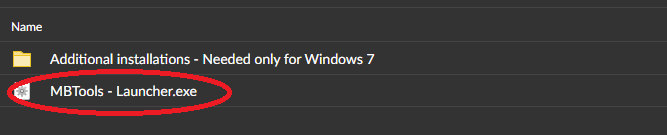
Depending on which diagnostic device you are using, you will need install the appropriate drivers.
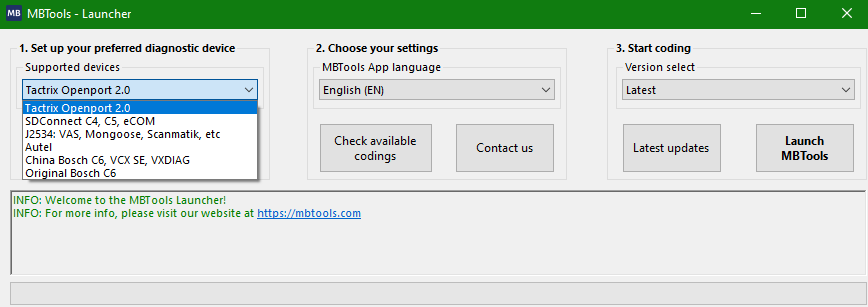
To be able to fully enjoy the benefits of MBTools, you will need the following:
- A diagnostic device, such as the recommended SDConnect C4, C5, Ecom or the Tactrix OpenPort 2.0, VAS5054A, VCX SE. Other diagnostic devices might work as well.
- A laptop
- Reliable internet connection, throughout the whole time using the MBTools app
- Windows 10 and 11 are recommended, but Windows 7 can work also, with a few tweaks (see below)
- Vediamo/DTS might be helpful to have, but most of the time, it will not be needed.
- For headunit codings, we recommend having a DoIP enabled diagnostic device. This is not required for Instrument cluster codings, such as AMG menus.
Once you have installed the needed programs, depending on your circumstances, simply launch the main app from the launcher.
The program will then open, prompting you for logging in.
If you are using the program on your own PC, simply use your MBTools username and password that you have signed up with. Feel free to save your credentials, so the next time you launch the app, they will be automatically filled.
From this page, you can also change the language to English, German, Russian, Chinese or Turkish
When you are using MBTools on a remote PC, please always use the Generated one-time login auth string, to avoid your account getting compromised. Please refer to the One-time auth string generation section.
After successfully logging in, the app will prompt you if you are connecting to the control unit on bench, or in the car. If you are not sure, please select "in car".
The main screen will now show up.

1. This is the diagnostic device selection. If you have correctly installed the drivers, previously, then this list will contain at least one item. Otherwise, it will be empty, and you will not be able to interact with the control units. A connection with the VCI should already have been successfully established, by this point.
2. From here, you are choosing which control unit you want to interact with.
3. Establish a connection or disconnect from the control unit. The control unit is then automatically detected for you, from within the category.
4. Set codings, such as AMG menu, Carplay, etc, depending on which control unit you are interacting with.
5. The current codings are stored in our server, at the moment you apply the "Set AMG", or "Set codings" codings. You can revert to the way it was before doing the codings, by clicking on this button. Please note that if you are using a one-time activation, this button will only be available for one hour after doing the activation, and before you close the MBTools app . Please also note that if you were prompted to flash the unit, this button can not revert firmware flashing states. To revert these, you must undergo the whole flashing procedure again, using the firmwares your unit originally had.
6. Control units such as instrument clusters can be virginized/renewed, in order to be able to fix the drive authorization errors.
7. Once a control unit has been renewed, it can be paired with the new vehicle. Pairing means that the mileage is taken from the car's other control units, and stored in the current control unit. In the case of instrument clusters, it will display the correct mileage, instead of -----
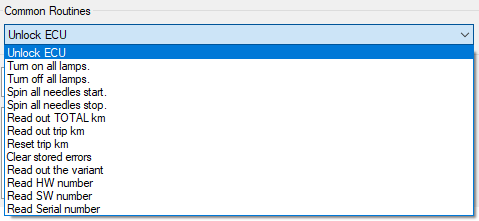
8. This functionality contains a list of common functions, such as reading out the total stored mileage, getting sw/hw numbers, reading out the current variant, etc.
9. In this section, you can manually run any UDS commands that you may know. A UDS command is basically a set of numbers, that describe certain functionalities. For example you can run the command 11 01 to perform a control unit hard reset. Please note that this is intended for more advanced audiences, and manually running the wrong command can cause damage.
10. This is the log area. It will contain important information, as well as tips on what you have to do, when something doesn't work out. You will see the messages colored in green for general purpose information, in yellow for warnings and in red for errors. Please pay attention to it, as it will generally give you all the information on how to proceed.
After you have performed any coding, you will be prompted to do a hard-reset. When you are prompted for that, you will generally want to press on yes
When you are done with everything, you can proceed and close the MBTools app. Please note that if you are using one-time codings, once you close the MBTools app, these codings can no longer be customised or reverted back to original, unless a new permission is purchased.
Was it hard? Let us know, any feedback is greatly appreciated!
While Windows 7 is not officially supported, we offer a work-around possibility, to hopefully make it work.
You can find the files needed to make the MBTools app work at the Windows 7 Downloads section.
Please install all the files from that folder.
An especially important file, and often overlooked, is the MBTools - enable TLS1.2 - w7.reg, which you must execute, and register.
This file is responsible for giving the MBTools app the possibility of communicating with the server, when running on Windows 7.
I am using Windows 7 and I get an error message saying that I am not using the latest version, even though I am. I am also not able to log in.
Although Windows 7 is not officially supported, there are workarounds available, to make it work. Please follow the specific guide about it, described in this page.
I am executing the MBTools app exe file, but it is not starting. Or it starts, but I am unable to log in. My username and password are 100% correct.
It is possible that the program is unable to reach our servers. Please try the following:
- Add MBTools app as an exception to the Antivirus software, or temporarily disable your Antivirus
- Please try, and make sure that you are able to access the MBTools website from your browser (Chrome, Firefox, Yandex, Edge, Internet Explorer, etc)
- If nothing else helps, it is possible that the .NET framework, a program that is required to run the MBTools app, is broken. Please fix it, using Microsoft's .NET framework fix tool, which you can obtain from here
https://www.microsoft.com/en-us/download/details.aspx?id=30135
I am running the EDIC installer, from within the MBTools launcher, but it crashes right at the beginning.
EDIC is encountering a conflict with a possible different version that is/was installed on your PC, and if uninstalled, it was not done so, correctly.
Please search your PC for the pdu_api_root.xml file (an easy tool to search for it, is Search Everything), and edit it with your preferred text editor (recommended editor is Notepad++).
Be sure to edit your file, and remove (or mark as comment) any xml nodes related to EDIC. The installer will now proceed, and the installation succeeds.
I am executing the program, but I get a similar error message to this:
This error message indicates that the program is already running in the background, and another instance can not start.
Please check in your task manager, any close any running MBTools instances. Otherwise, try to restart your PC.
I have successfully logged in, but the VCI selection dropdown is empty, or a device appears, and I am not able to establish a connection to it.
Please make sure that you have installed the Toolkit/EDIC drivers provided by us. For Openport, also install the provided Openport drivers.
Please also ensure that no other programs, such as Xentry, Vediamo or DTS Monaco are currently using your VCI.
I am encountering some problems with the latest version of the MBTools app.
It can happen that we make a new release, and we add a new bug to the program.
For these cases, we have the archive, accessible from the download page.
Please get an older, stable version of the MBTools app, and try it out with that.
We would appreciate if you report such occurrences to us, so we fix it within the next release.
I am trying to code a control unit, but it tells me that I do not have permissions, or the required number of tokens.
Please check that you have the right permissions, on the User Permissions Page
I am trying to code a control unit, but I don't succeed.
We have implemented a lot of error messages, warnings, and descriptive details, in the MBTools app.
When going to the "Set AMG" or "Set Codings" page, the app first checks the control unit, for compatibility, and will give you relevant warnings.
Please check the logs in the MBTools app, for such warnings, and act accordingly.
Additionally, we have added the Getting started page, which gives more details about what codings your car supports, and what to expect of them.
I am trying to find out a serial number, of some codings I did in the past.
Please check the User Activity page. It contains a history of all the codings that were carried out using your account.
If you see there activity which you don't recognize, or are suspicious, please take immediate security measures and change your password.
It is a good idea to also contact us, and let us know that your account was compromised.
I have a problem for which I did not find an answer here. How can I get help?
When you contact us, please describe the problem with as much detail as possible.
Saying "It doesn't work to code my car" does not contain enough information for us to be able to help you.
A good help request should contain the following information:
- Car model, fuel type and year
- The MBTools app version (which you should ideally use the latest version)
- Describe what you are trying to accomplish
- Describe what stops you from accomplishing it
- Ideally send a screenshot of the error message(s) in english (We do not speak Chinese!!!), and a photo of the instrument cluster/headunit you are trying to code, if that is the case
Bought something and it doesn't show up?
Usually stuff you buy are automatically and instantly assigned to your account, and you get to use them right away. If that is not the case, please click on the orange circle on the top left of the screen, and then select "Reload Permissions", then check again. If after more than 30 minutes, you still have problems, please do not hesitate to contact us!
Q. Is the program locked to a single PC?
A. No, the program can be used on as many PC's as you need. The program will know it is you who is using it, by the login credentials.
Q. Internet connection is required?
A. Yes, please carefully read the Requirements section.
Q. Can I run the MBTools app, without purchasing anything?
A. Yes, we want to give you the possibility of making sure that everything is readily set up, and running, before you commit on purchasing anything.
However, it will have limited functionality. You will not be able to execute or do any codings, that require payment, such as performing unlock procedures, do codings, etc.
Q. I have changed my mind, and I would like to modify some of the customizations. Can I do it?
A. Yes of course. You will have 30 minutes to redo any codings you have previously done, and change the customizations to your liking, without any additional costs.
Q. Can I see some example AMG menus?
A. Yes, we have a big collection of pictures in the Gallery menu.
Q. What payment methods do you accept?
A. We accept various payments methods, including, but not limited to PayPal, Google Pay, Cryptocurrency, Credit/Debit card payments, etc. We also accept payments by Western Union, when the amount is greater than 500 €. Please contact us to get the necessary details.
Q. For how long are original coding backups stored?
A. Original codings are stored indefinitely, meaning you can revert back to them at any time. However, please keep in mind that free reversal can only be done up to 1 hour after first performing the coding and until you keep the MBTools app open. After that, should you wish to revert, say, after a year, the coding must be bought again.
Q. What is the purpose of the one-time auth string?
A. The one-time auth string gives you the possibility of logging into the MBTools app from another PC, that is not yours. Username and passwords are very easily stolen, when you enter them on remote computers.
Should you encounter any sort of difficulties, or be in need of support, you can contact us by writing through the following channels:
MBTools
WhatsApp (preferred contact method): +407 4321 1234
Please do not call, we will only be able to reply to written messages.
Email (low priority support): contact@mbtools.com
Our timezone: UTC+2 (Eastern European Time)