Mercedes Headunit Antitheft Unlock Procedure
When a Mercedes-Benz headunit is installed in another vehicle, it reads the vehicle identification number (VIN) from the electronic ignition lock (EIS/EZS). If that VIN differs from the VIN previously stored by the headunit, the mismatch triggers the antitheft procedure and the unit enters antitheft mode. It remains locked until the correct PIN for its serial number is submitted.
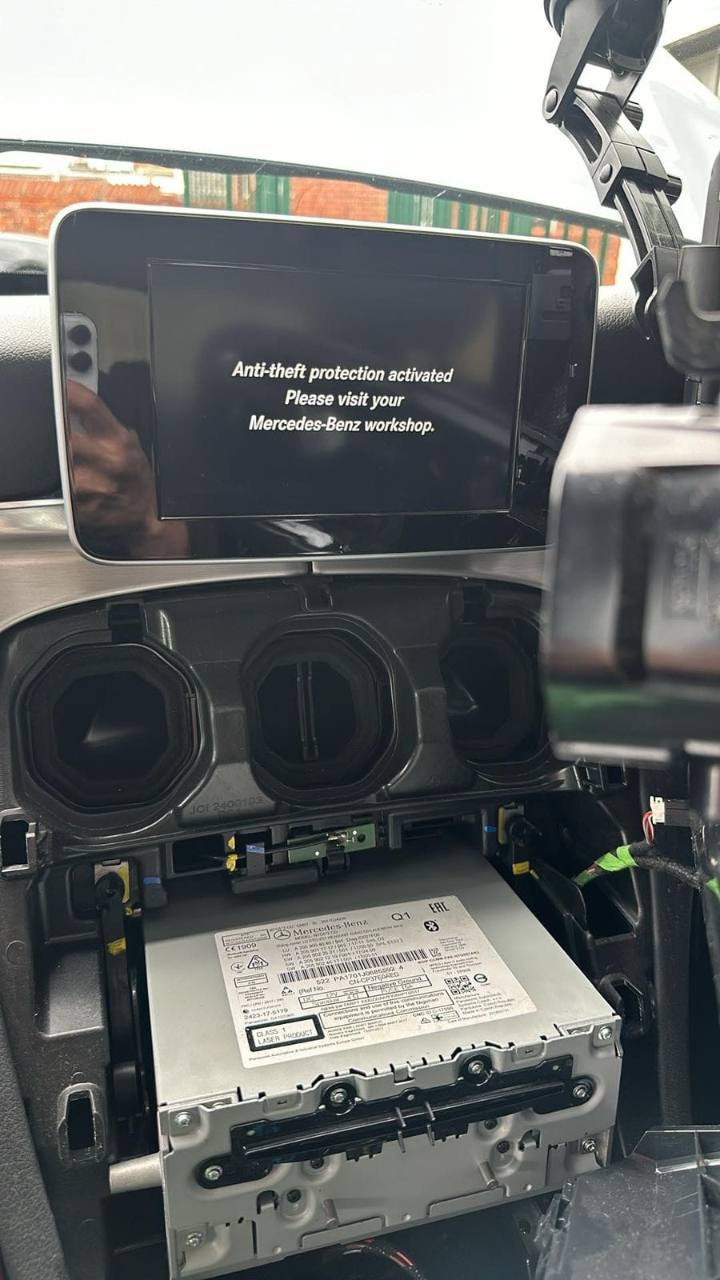
The VIN mismatch also triggers fault code 9561 (B156100): "The PIN for the anti-theft protection is incorrect or absent."
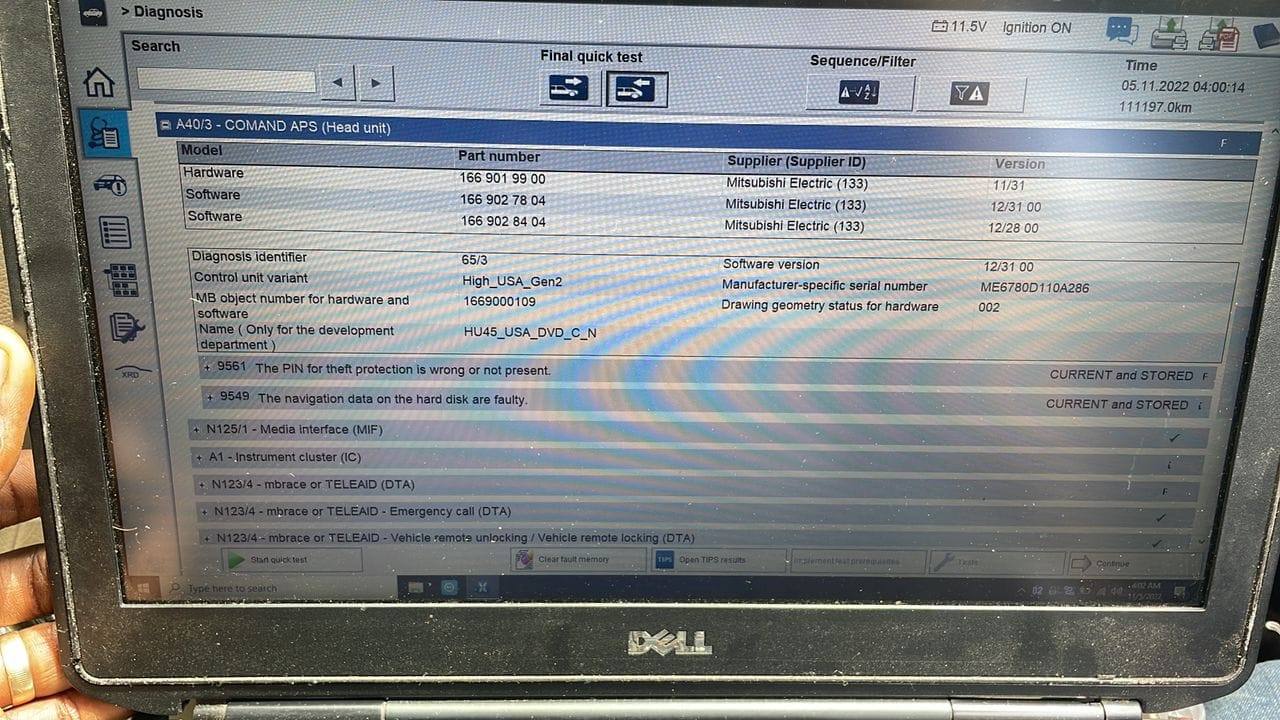
This guide shows how to connect to the headunit, obtain the correct PIN from the MBTools Antitheft PIN page, enter it in the MBTools app, and confirm that the headunit is unlocked.
Only perform this procedure on a headunit that you own or are authorized to service.
What You Need Before Starting
- A Windows laptop with the latest MBTools app installed.
- A supported Vehicle Communication Interface (VCI). Follow the VCI setup guide first if your diagnostic device is not configured.
Supported Mercedes Headunit and NTG Models
MBTools supports HU4 (NTG 4), HU4.5 (NTG 4.5), HU5 (NTG 5), HU5S1 (NTG 5.1), HU5ES2 (NTG 5.2), HU5.5 (NTG 5.5), HU6 (NTG 6), HU7 (NTG 7), and Gen20x headunits.
You do not need to know or select the exact headunit model. MBTools automatically detects the supported headunit and connects to it.
HU7 and Gen20x headunits require an Aftersales Enhanced certificate to insert the antitheft PIN. If you do not already have this certificate, we can provide it for an additional €50, charged separately from the antitheft PIN, so you can complete the PIN insertion.
Mercedes Headunit Antitheft Unlock: Step by Step
1. Connect MBTools to the Headunit
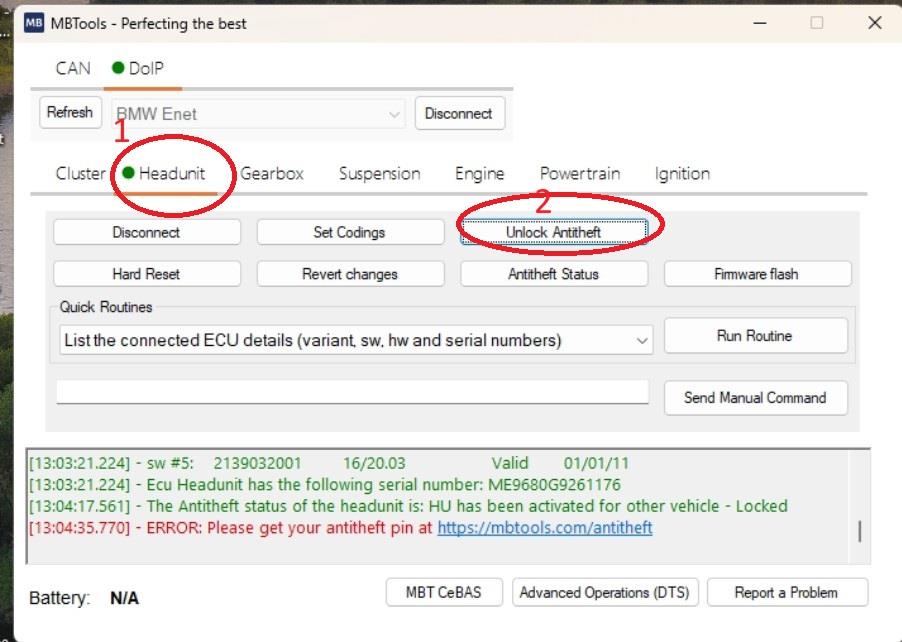
Connect your diagnostic interface and start MBTools. The app automatically detects the supported headunit model and connects to it, so you do not need to identify or select the HU or NTG version. Open the Headunit tab; a green status indicator confirms that the ECU is connected.
2. Read the Headunit Serial Number
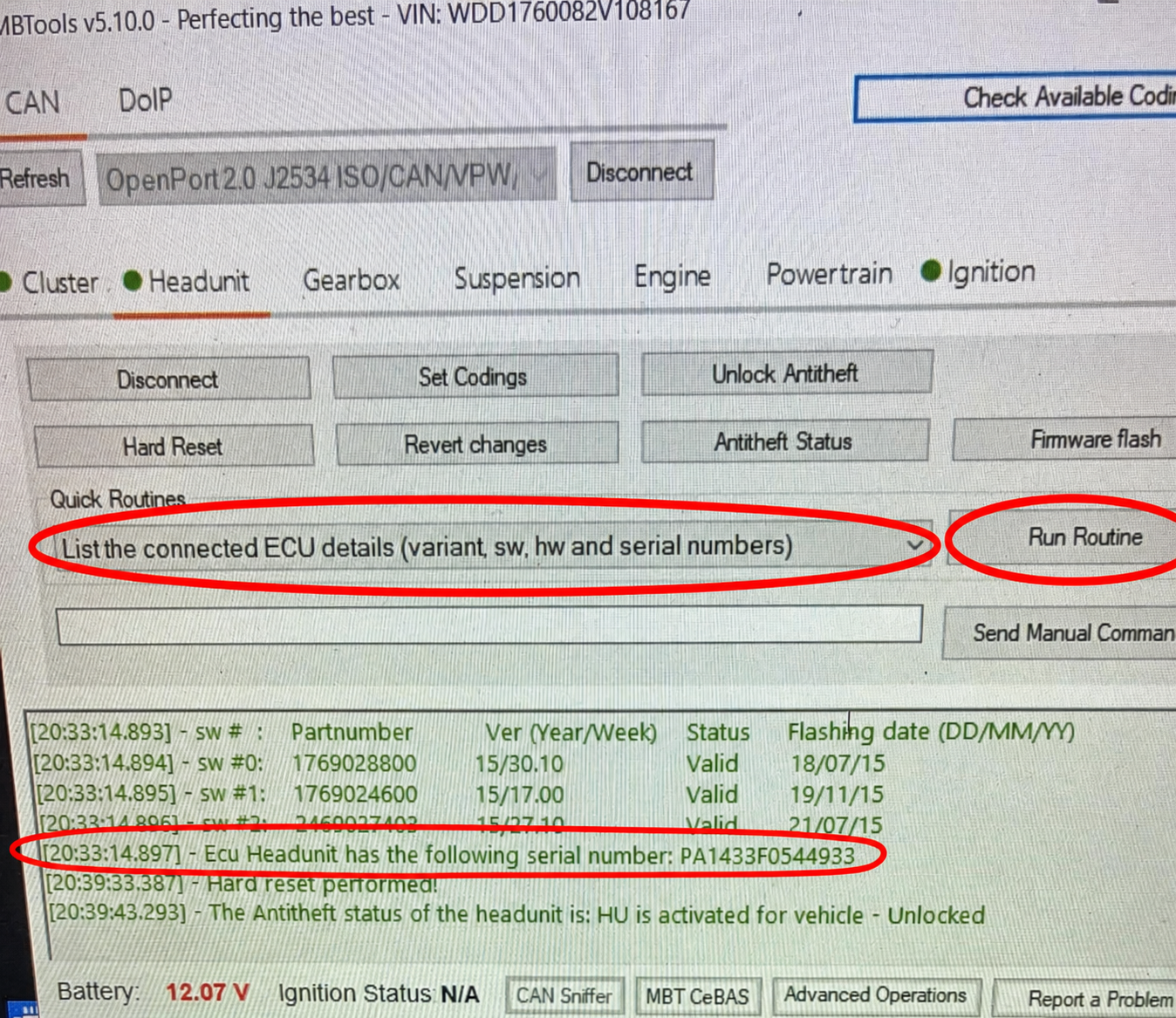
In the Headunit tab, open the Quick Routines menu, select "List the connected ECU details (variant, sw, hw and serial numbers)", and click Run Routine. Copy the 14-character headunit serial number shown in the log, then use it on the MBTools Antitheft PIN page to obtain the matching PIN. Double-check the serial number before requesting the PIN.
3. Start the Unlock Antitheft Procedure
Click Unlock Antitheft. If the log reports that the headunit is activated for another vehicle and is locked, continue only after you have the PIN for the displayed headunit serial number.
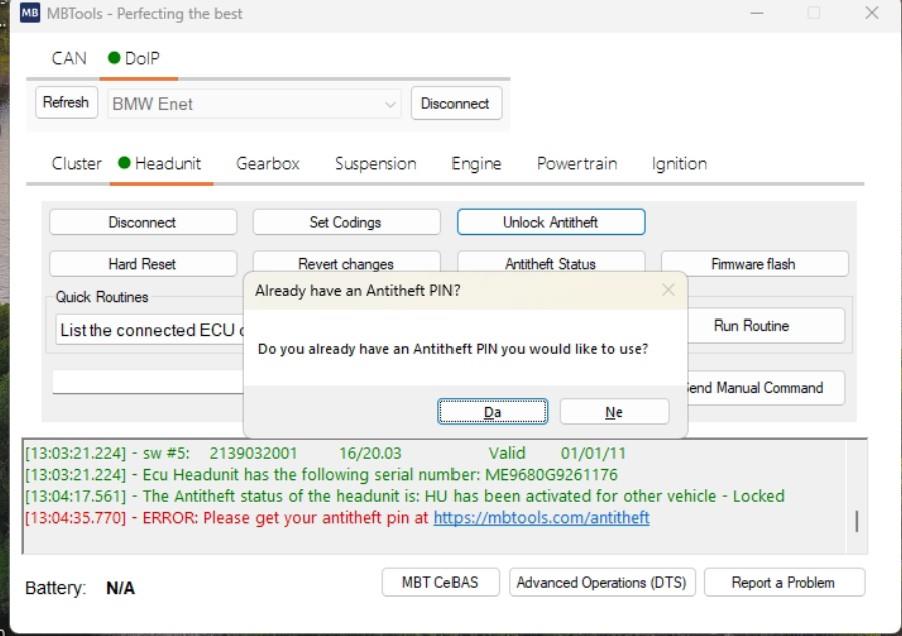
4. Confirm That You Already Have the PIN
When MBTools asks whether you already have an Antitheft PIN, choose Yes. If you do not have one yet, obtain it from the Antitheft PIN page before continuing.
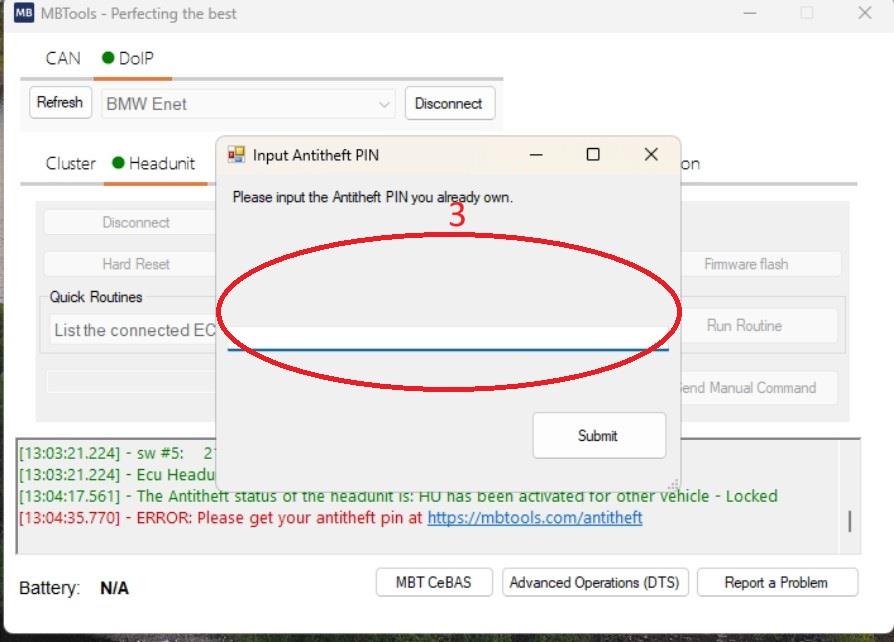
5. Enter and Submit the Antitheft PIN
Older headunits manufactured up to around 2006 will have a 6-digit antitheft PIN.
Newer headunits, on the other hand, will have an antitheft pin comprised of 25 characters.
Enter the PIN exactly as provided and click Submit. Keep the ignition, laptop, internet connection, and diagnostic interface stable while MBTools completes the operation. Do not disconnect the VCI or switch off the vehicle.
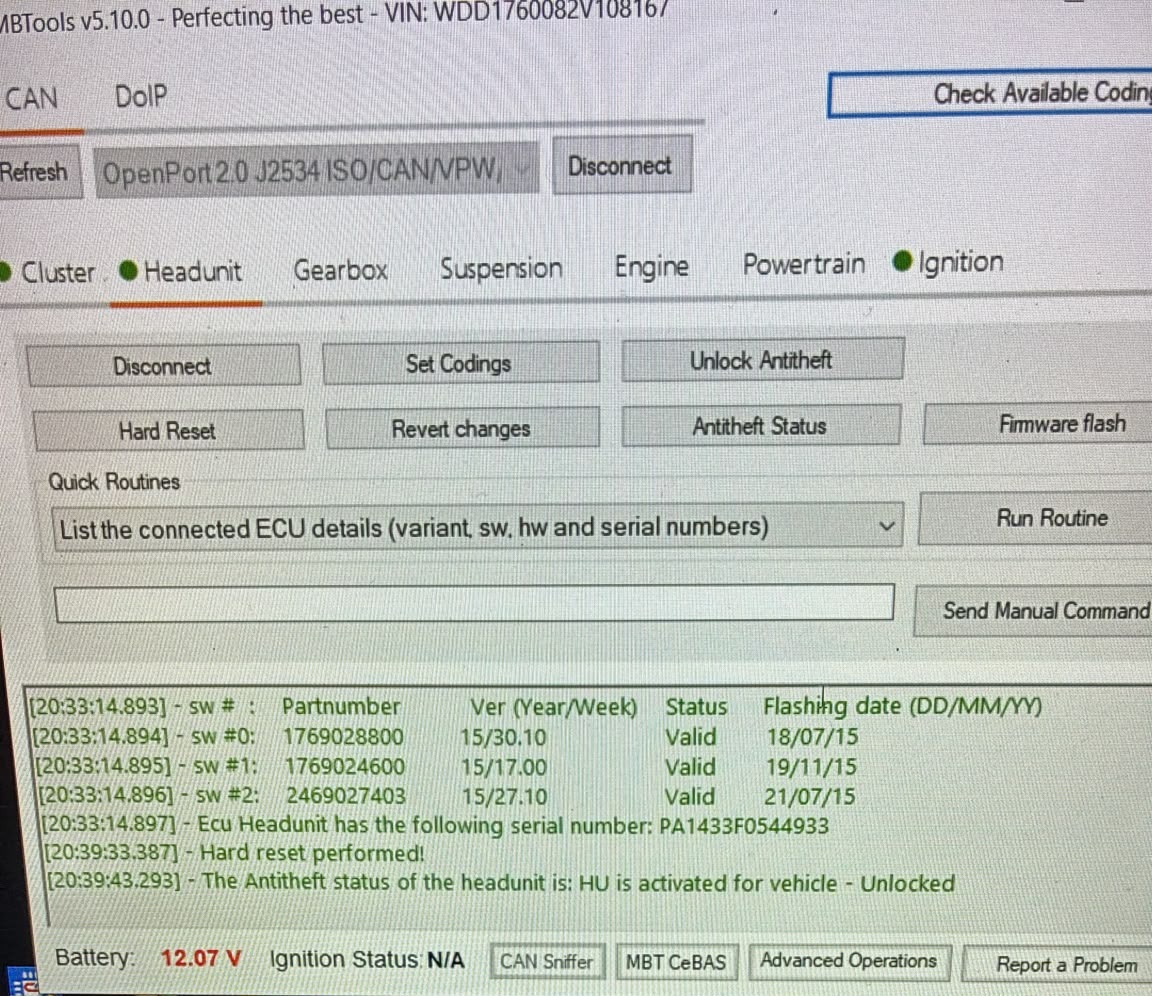
6. Verify That the Headunit Is Unlocked
Wait for MBTools to finish any requested headunit reset. Then click Antitheft Status. A successful result reports HU is activated for vehicle - Unlocked.
Troubleshooting a Mercedes Antitheft Unlock
- Still locked: confirm that the PIN belongs to the exact 14-character serial number shown by the connected headunit.
- Connection drops: check the VCI driver, cable, selected protocol, and ignition state before retrying.
- No serial number shown: reconnect the Headunit ECU, then select "List the connected ECU details (variant, sw, hw and serial numbers)" from Quick Routines and click Run Routine. You can also read the serial number from the label on the unit.
- No PIN yet: use the MBTools Antitheft PIN service. Pins are usually provided within 30 minutes during service hours, but may take longer on holidays.
- Do not repeatedly submit an unverified PIN. Recheck the serial number and the code before another attempt.
- PIN accepted, but antitheft mode returns after the headunit restarts: the PIN is correct because the headunit accepted it. This symptom means the headunit does not have reliable communication with the electronic ignition lock (EIS/EZS). Diagnose the connection between the headunit and EIS/EZS before attempting the unlock again.
Mercedes Headunit Antitheft FAQ
Why is my Mercedes headunit in antitheft mode?
A headunit commonly locks after it is installed in a different vehicle. It must be activated for that vehicle with the PIN associated with the headunit serial number.
Where do I get a Mercedes headunit antitheft PIN?
In the MBTools Headunit tab, run "List the connected ECU details (variant, sw, hw and serial numbers)" from Quick Routines. Use the 14-character serial number shown in the log on the MBTools Antitheft PIN page. The serial number can also be read from the physical label.
Do I need to know which Mercedes NTG headunit model is installed?
No. MBTools automatically detects and connects to supported HU4, HU4.5, HU5, HU5S1, HU5ES2, HU5.5, HU6, HU7, and Gen20x headunits.
How do I know the antitheft unlock succeeded?
In MBTools, click Antitheft Status after the procedure. The log should report that the headunit is activated for the vehicle and unlocked.
What should I do if the headunit remains locked?
Verify that the PIN matches the exact headunit serial number, restore the diagnostic connection, and check the antitheft status again.