Keeping your Mercedes navigation system up to date in 2026 is essential for accurate route guidance, improved driving safety, and optimal use of your Mercedes ME subscription.
In this comprehensive guide, we’ll walk you through the benefits, requirements, and exact steps to update your Mercedes-Benz maps using MBTools and the official COMAND Download Manager.
Why You Should Update Your Mercedes Maps in 2026
Stay Current with Road Changes
Navigate Offline with Confidence
Get the Most from Your Mercedes ME Subscription
Enhance Your Driving Experience
- Accurate Routes: Know the fastest and most reliable paths.
- Live Traffic Alerts: Avoid delays and congestion. (Requires Mercedes ME subscription)
- Improved Safety: Be aware of hazards, roadblocks, and new traffic laws. (Requires Mercedes ME subscription)
- System Enhancements: Enjoy the latest interface upgrades and navigation features.
Save Time and Money with MBTools
- DIY Flexibility: Skip the dealership costs and update your maps from home.
- Hands-On Knowledge: Learn how to manage your car’s software and settings.
Roads, points of interest, and infrastructure change regularly. By using the latest Mercedes-Benz map updates, you ensure your navigation reflects real-world conditions for accurate and reliable directions.
Mercedes navigation systems store entire continental maps locally, so you can navigate even without internet access or a smartphone connection.
Latest map data enables real-time traffic updates, dynamic rerouting, and accurate alerts on closures and detours—features that are optimized with a valid Mercedes ME subscription.
Benefits of updated maps include:
Using MBTools to update your maps offers:
What You Need Before Updating Mercedes Navigation Maps
Before starting your map update, ensure you have the following:
- A Windows 10 or 11 PC with internet access and sufficient hard drive space.
- A USB 2.0 stick or SD card with enough storage capacity for map files (varies by region).
Tip: USB 2.0 is preferred due to compatibility issues with USB 3.0 in some head units.
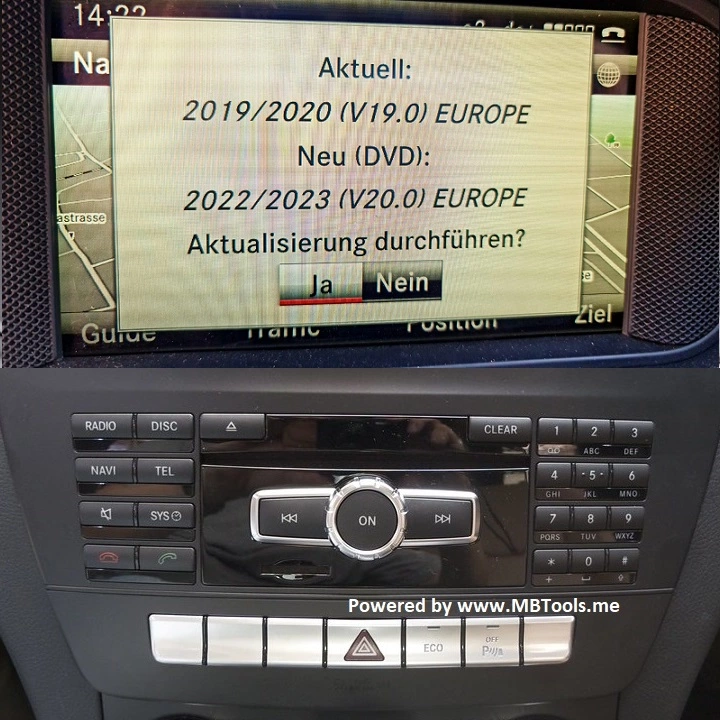
How to Update Your Mercedes Maps (2026 Version)
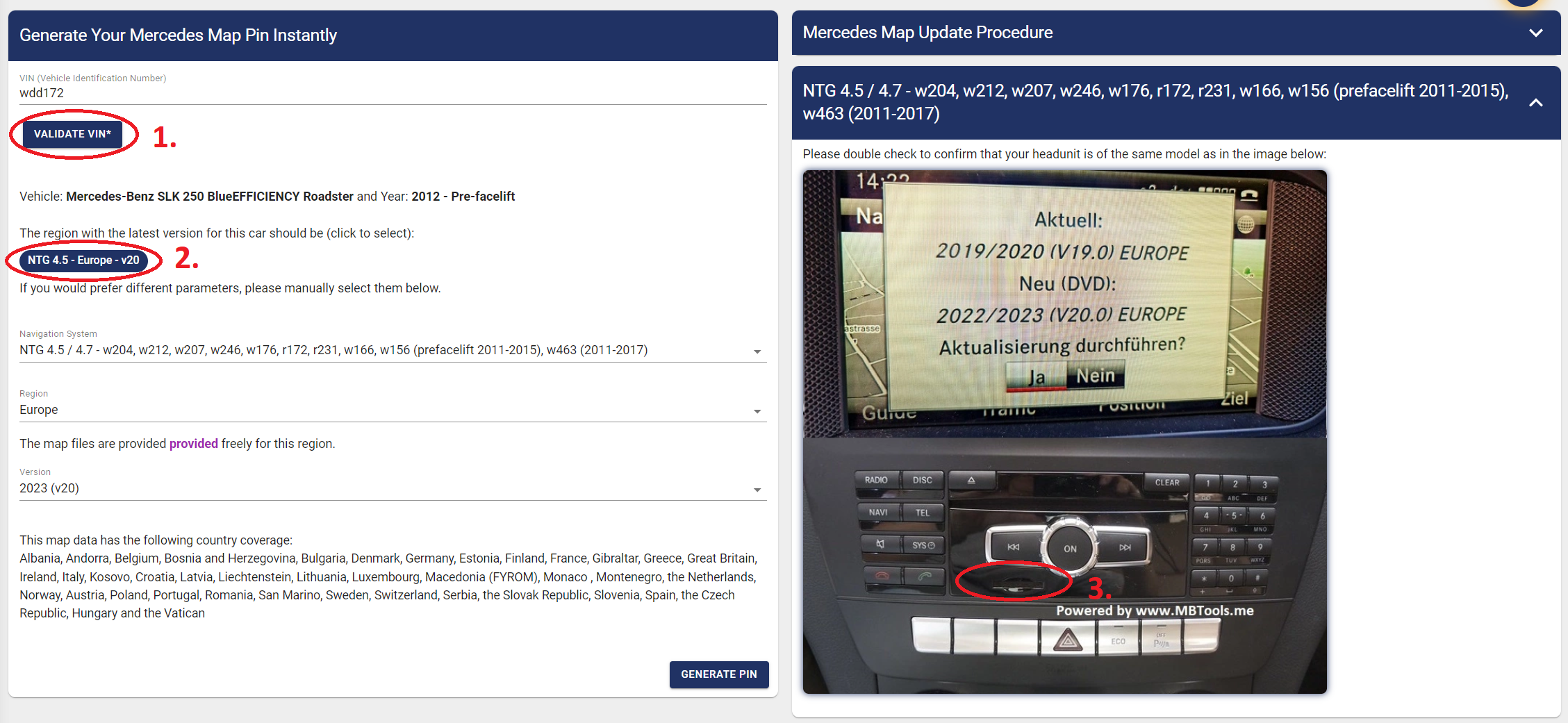
Step 1: Identify Your Navigation System (NTG/HU Version)
- Go to our Map Pin Page
- Enter your VIN and validate it, to check if your vehicle supports the map update, and determine the headunit model and compatible map files
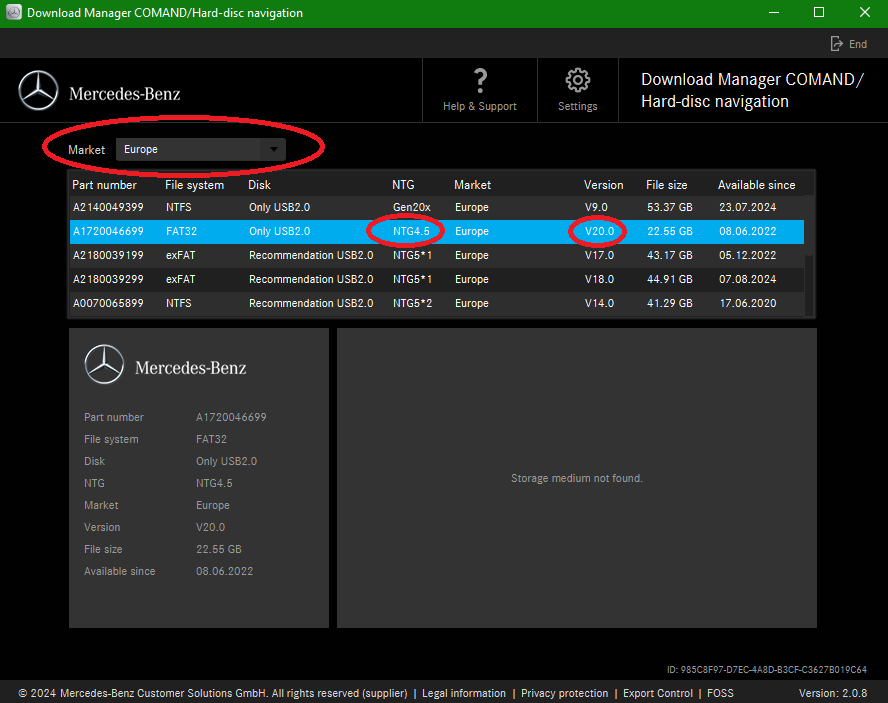
Step 2: Download the map files
- Download and install the COMAND/Hard-dik navigation Manager
- From there, based on the info you received from the Map Pin page, correctly select the Market/region, NTG version, and map file version
- Insert a USB stick or SD card, and begin the download
- Please note:
- If using a USB drive, then USB 2.0 is recommended.
- Additionally, it must be correctly formatted to the File system mentioned in the download manager, based on the map version you are installing (NTFS, FAT32, exFAT).
- Please ensure that you have sufficient space to download the map files, on both your removable storage (USB stick/SD Card), as well as on your PC.
Step 3: Install the maps in your car
- Once the files have been successfully transferred from your PC onto the removable storage, it is time to install the map in your vehicle
- Insert the USB or SD card into your vehicle's port, and the installation screen should automatically appear, prompting you for the Mercedes Map Pin code.
- Proceed to the Map Pin Page to buy and generate your activation PIN if you haven't already.
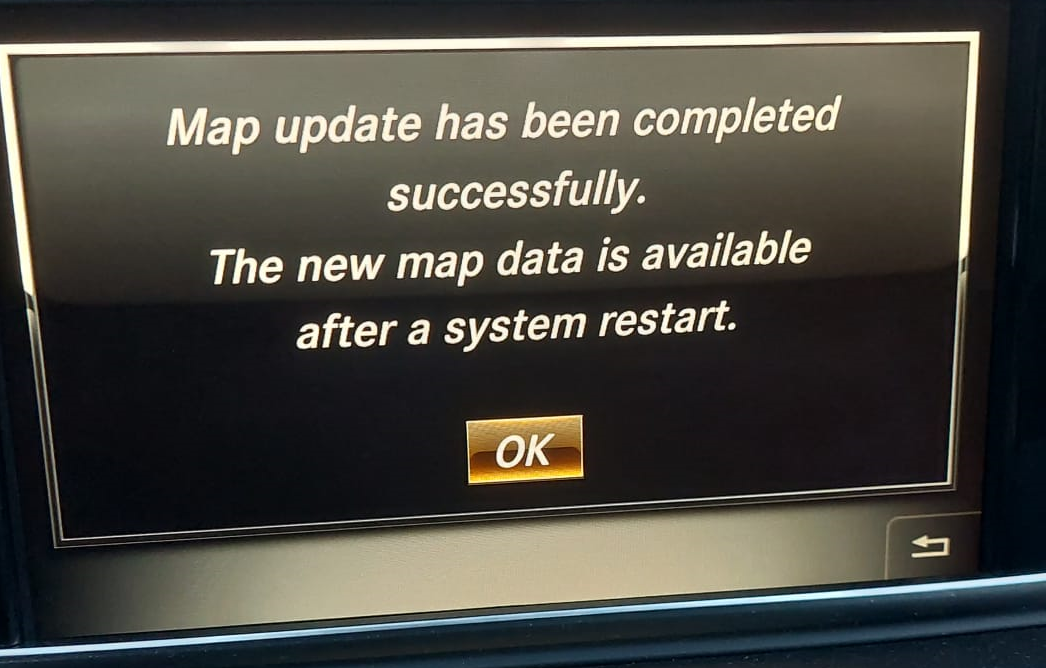
Step 4: Complete the Installation
- The process can take up to 1 hour
- You may continue driving during the update, as well as interrupt it and/or resume it later.
- Once done, your Mercedes maps are now up to date with the latest version
Troubleshooting Mercedes Map Update Issues
The Installation Doesn't Start
- Confirm you downloaded the correct map files for your headunit
- Make sure your storage drive is formatted properly:
- FAT32 for NTG4.5
- exFAT for NTG5.1
- NTFS for NTG5*2 and NTG5.5
- USB 3.0 drives may cause issues - use USB 2.0 instead
Incorrect Map PIN
- Ensure that during the map pin generation step, you have selected the correct parameters, including the correct VIN.
- The map PIN is unique to:
- Your VIN
- Your headunit version
- Your selected map version and region
- Example: Use VIN: WDDGJ8JBXFG419540 (not FIN: WDD2043881G419540).
- Ensure you are inserting the pin correctly (watch for O instead of 0 and vice-versa
Region Not Found in Mercedes Map Download Manager
- Mercedes offers free map files via the official portal only
- MBTools does not host map files;
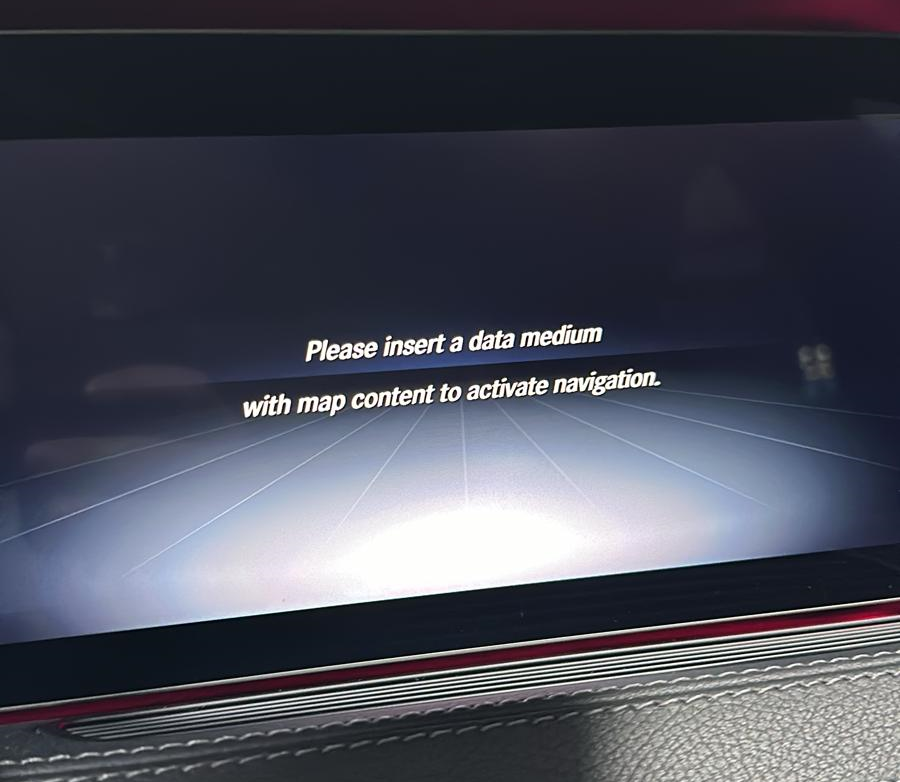
"Insert Data Medium" Message on Screen, after finishing the installation
- Often occurs in NTG5.5 retrofitted units, or after a Mercedes Map region change
- You will need to delete the old maps, using the files at NTG 5.5 Map Delete Files which must be unzipped and placed on the removable storage drive
- A new "delete map PIN" is required for this process, which can be generated by selecting the "Map Delete" option on the Map pin page
- After going through the Map Delete procedure, reuse your original PIN to reinstall the updated maps