Video guide
The following video is a good example of how our tool works, and it was created by one of our satisfied user Smart Landwho offers services to end-customers, using our program.
We still encourage you to also read our article below, which details some key features for the installation to work, as well as troubleshooting steps.
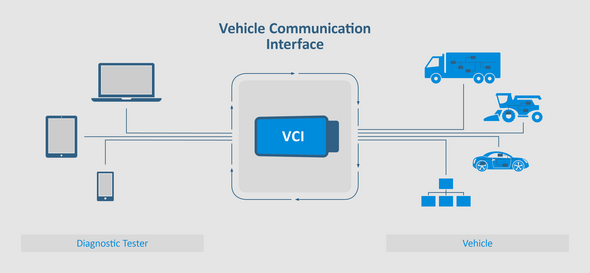
What is a VCI?
A VCI (Vehicle Communication Interface) is a hardware device that bridges the gap between your computer and a vehicle's OBD (on-board diagnostic) systems.
It's essential for performing diagnostics, programming, firmware updating, and other advanced functions on modern vehicles.
Prerequisites
This guide aims to help you set up your diagnostic device, and empower you to unlock hidden features in your Mercedes-Benz with MBTools.
- VCI device (ensure compatibility with your intended vehicles)
- Laptop with Windows operating system (Windows 10 or newer is recommended)
- Vehicle-specific diagnostic software - more on that, below
- Internet access
There are multiple VCI devices to choose from, depending on your budget and needs. The ones below have been tested and are known to work, but if you have, other diagnostic devices might work as well.
Tactrix Openport 2.0 (CAN only)
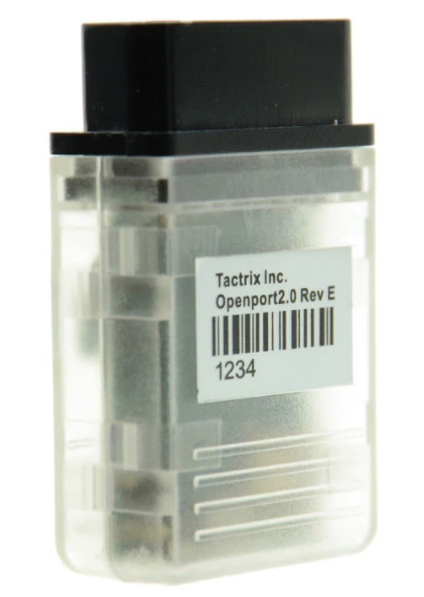
Prices from: 49 €
A budget oriented device. Can do most codings, but it's not recommended for flashing.
VCX SE - (CAN and DoIP)

Prices from: 300 €
A budget diagnostic device that supports flashing and coding all sorts of control units, including DoIP hardware.
Bosch C6 (CAN and DoIP)

Prices from: 1975 €
Genuine hardware - the best options to consider, for power users.
These devices are sold by our trusted partner Emtronika
Steps
Install the MBTools software
- Start by downloading the MBTools software from here. Once downloaded, run it. No installation is needed, it will open the MBTools Launcher right away.
Install VCI drivers
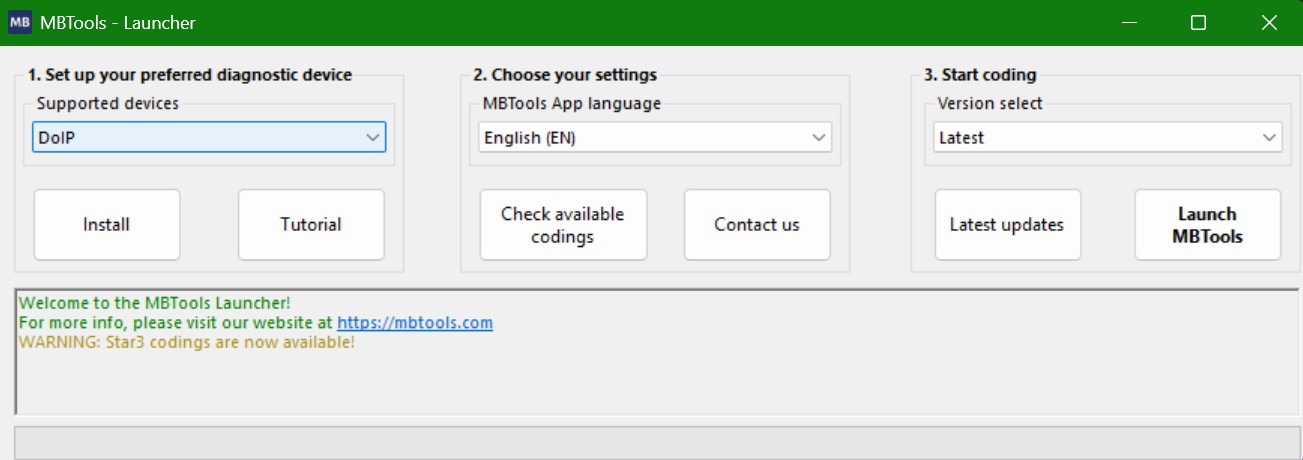
- The MBTools Launcher will guide you through the driver installation. In the top-right corner, select the diagnostic device from our supported options
- SDConnect C4
- ECOM
- Tactrix Openport
- VAS5054A - select J2534
- VCX SE
- VXDIAG
- some Autel models such as Maxisys MS919 (select J2534 from the list)
- Bosch C6 (both the original and clone models)
- ... and many more!
- Once selecting the device you wish to install, press on "Set-up platform" to download and install the necessary drivers. The installation process is straight-forward.
Connect your VCI
- Connect your VCI to your PC using the appropriate method (USB, LAN, or wireless - depending on the device model).
- Crucial step: You must also connect your VCI to your car. They are powered through the OBD (On-Board Diagnostic) socket, not by your PC! Therefore, in order for the diagnostic device to be correctly detected, it must be connected to both the car and your PC.
Open the MBTools app
- Once you have finished with the drivers, you may proceed and launch the MBTools App, from the left side of the MBTools Launcher.
- Log in (or create a free account at our Registration page).
- At the top left side of the window, a drop-down list of detected VCI's will show up.
Congratulations! You are ready to code
This guide will help you set up your VCI with MBTools, our powerful software for coding Mercedes-Benz vehicles.
Once the drivers are installed, your VCI will also work with other popular Mercedes-related software as well, such as Xentry, DTS Monaco and Vediamo.
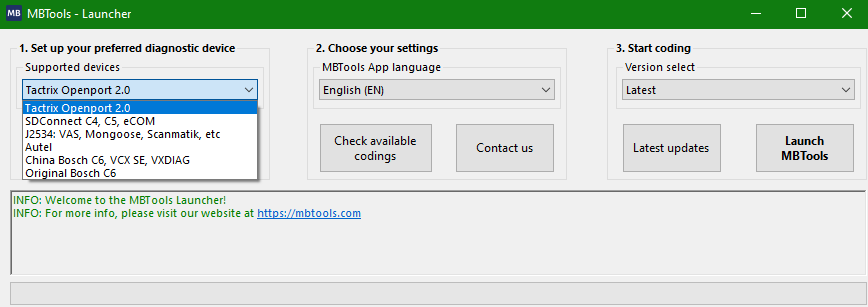
Devices like ELM327 and Delphi DS150e are not suitable for coding. If you have a different device, give MBTools a try, generally by installing the J2534 drivers from the list.
Select the one you have connected. MBTools will establish a connection link with your MB vehicle.
Ready to customize your ride?
Discover available free and paid codings specific for your Mercedes-Benzon our Getting Started page
Simply enter your VIN to see what's possible.
Depending on your vehicle model, you may be able to enhance it with options such as AMG Menu, activate Carplay, lower the height of your airmatic suspensions, enable Agility mode, and many more!
Additional steps, specific to the diagnostic device of your choice
SDConnect VCI's work by being connected through LAN or Wi-Fi.
This means that, apart from installing the drivers, additional steps must be taken.
- Network Configuration:
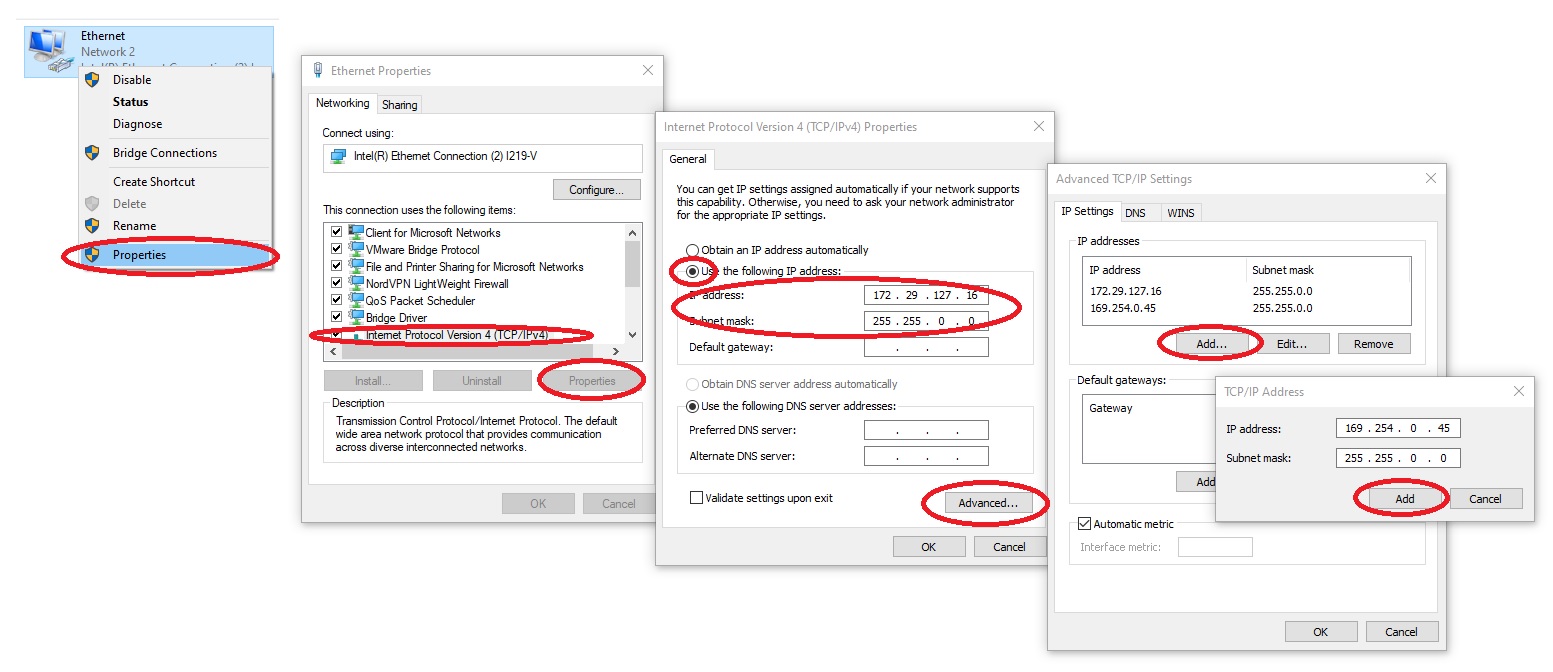
- IP Address:Set your computer's IP address to 172.29.127.16 (Subnet Mask 255.255.0.0) for standard SDConnect connections.
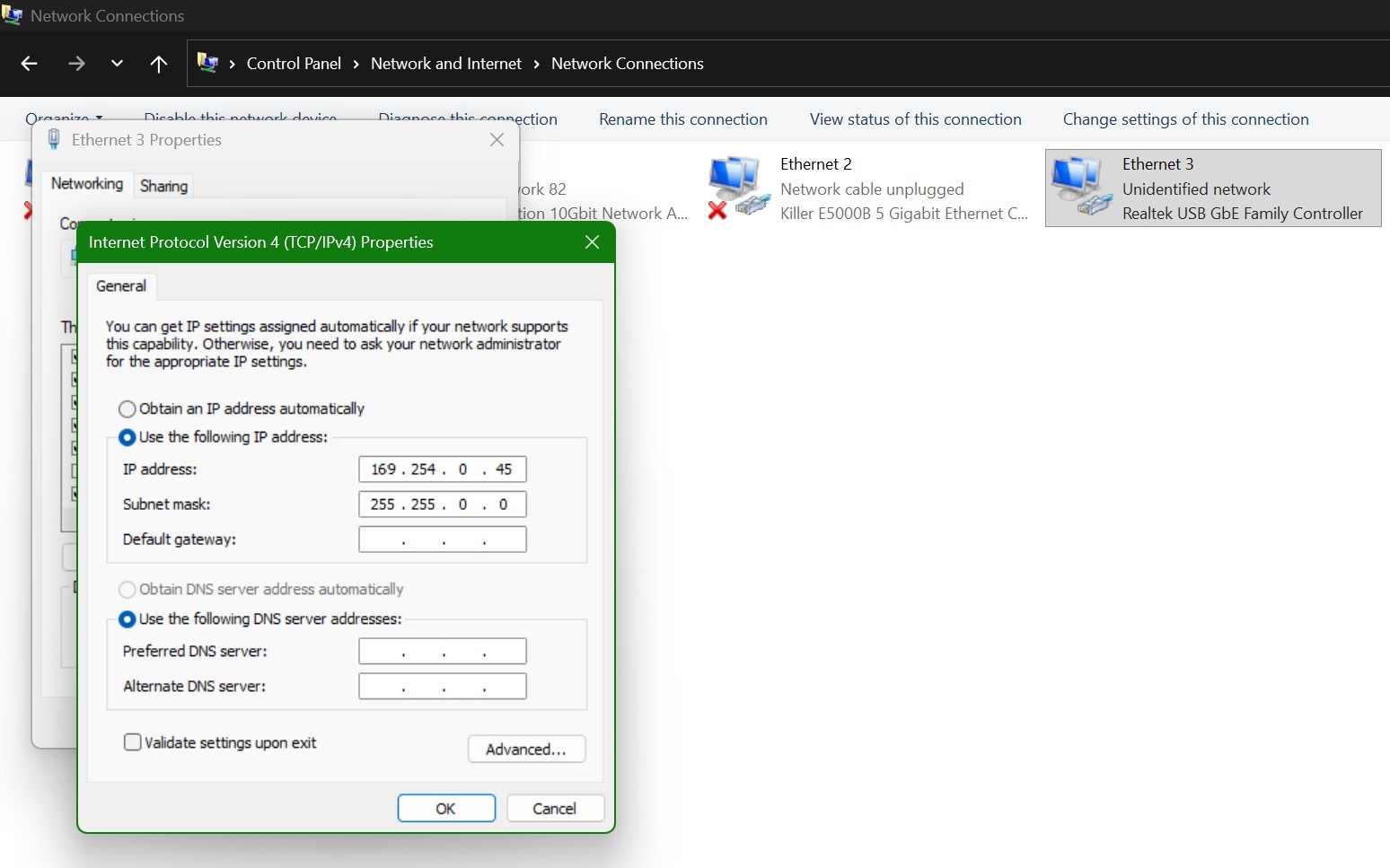
- DoIP Support:If your SDConnect C4 supports DoIP, add an additional IP address: 169.254.0.45 (Subnet Mask 255.255.0.0).
- Access the IP settings from Control Panel \ Network and Internet \ Network Connections
- The following video explains how to change the IP Address of your PCso it can work with SDConnect (use the values detailed above, not the values from the video).
- Firewall considerations
- Recommended:Create a firewall exception rule for your SDConnect. This maintains security while allowing communication.
- Alternative:Temporarily disable your firewall (less secure, but easier for troubleshooting).
- Antivirus software
- Depending on the Antivirus, you may need to add an exception rule for your SDConnect, or temporarily disable your antivirus.
- Consult your antivirus vendor's documentation for specific instructions.
- How to check if my SDConnect C4 supports DoIP?
There are no apparent visual clues, unless the device is dismantles, and you check the hardware from inside.
Keep in mind that it can also be the case for the SDConnect to support DoIP, but the OBD cable that comes with it, not.
The most straight-forward way is to establish a DoIP connection with a control unit from your car, such as the Headunit (from 2015 and newer car models), and if the connection succeeds, then you know the hardware supports it, and you have everything correctly configured.
Our DoIP Flashing guide will reflect this in more detail.
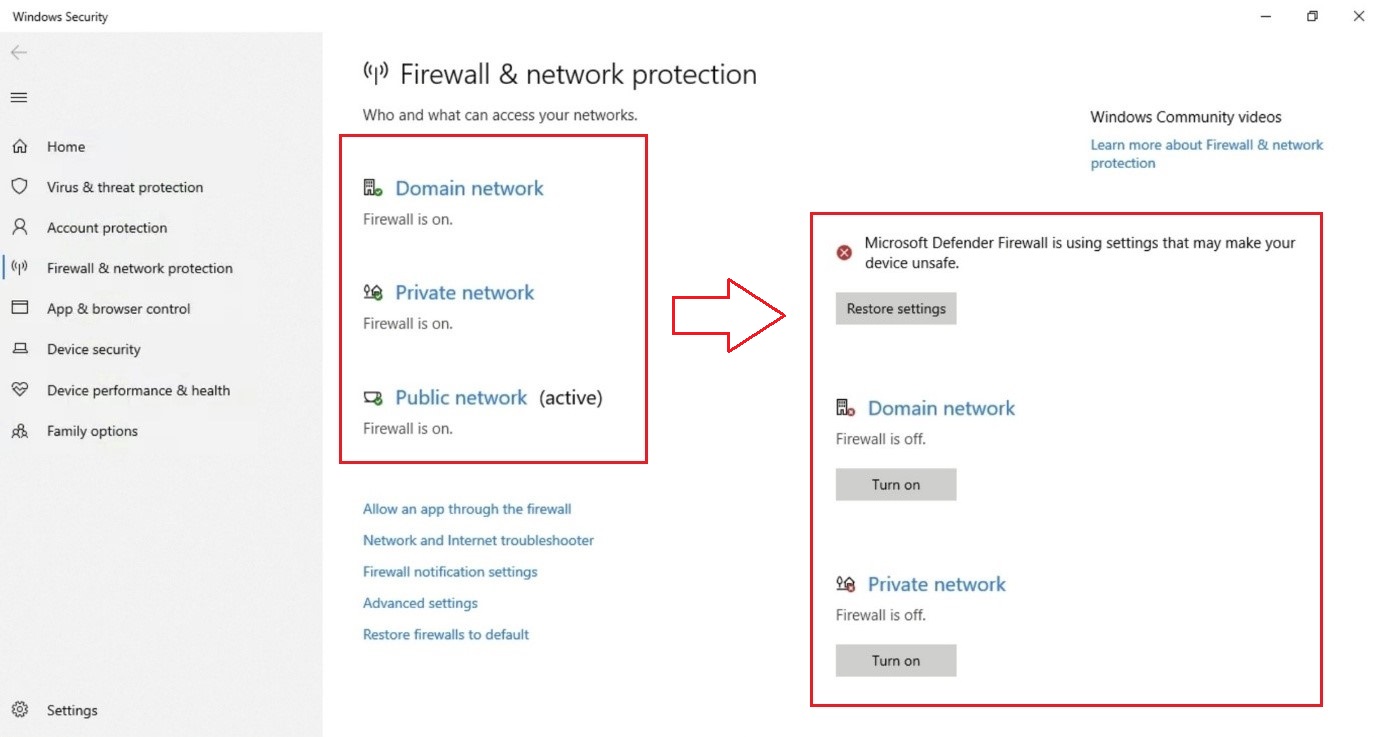
Make sure you add a firewall rule or temporarily disable it.
- Disabling Firewall:
- Now you can download the MBTools App
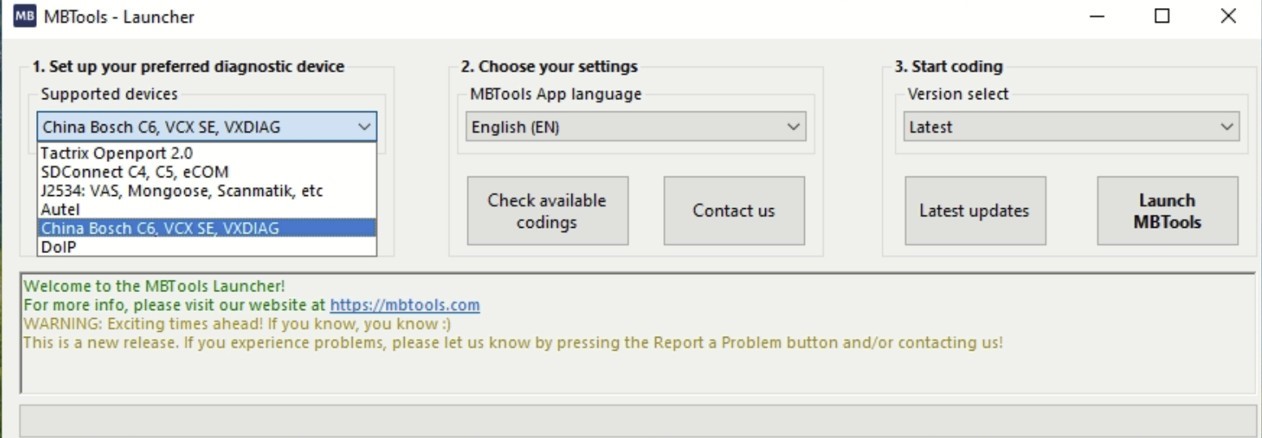
- Using the app launcher install China Bosch C6, VCX SE, VXDIAG drivers.
- By installing the above mentioned devices automatically the VX Manager setup will pop up.
- Select the PASSTHRU - J2534 component.
- Run VX Manager and under Devices TAB check if your VCX SE has a valid license.
- If there is an available license status you can proceed to check your drivers status.
- If you have Xentry XDSO installed now your VCX SE will be updated.
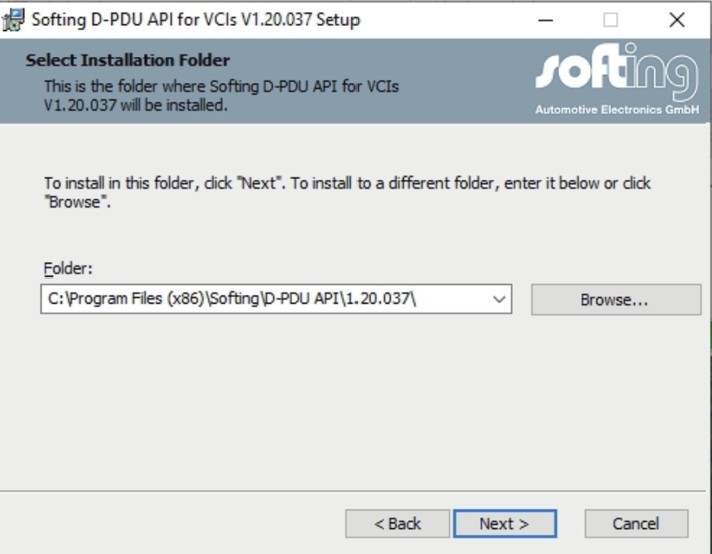
- After VX Manager is installed and configured Softing v1.20.037 will be installed by MBTools App.
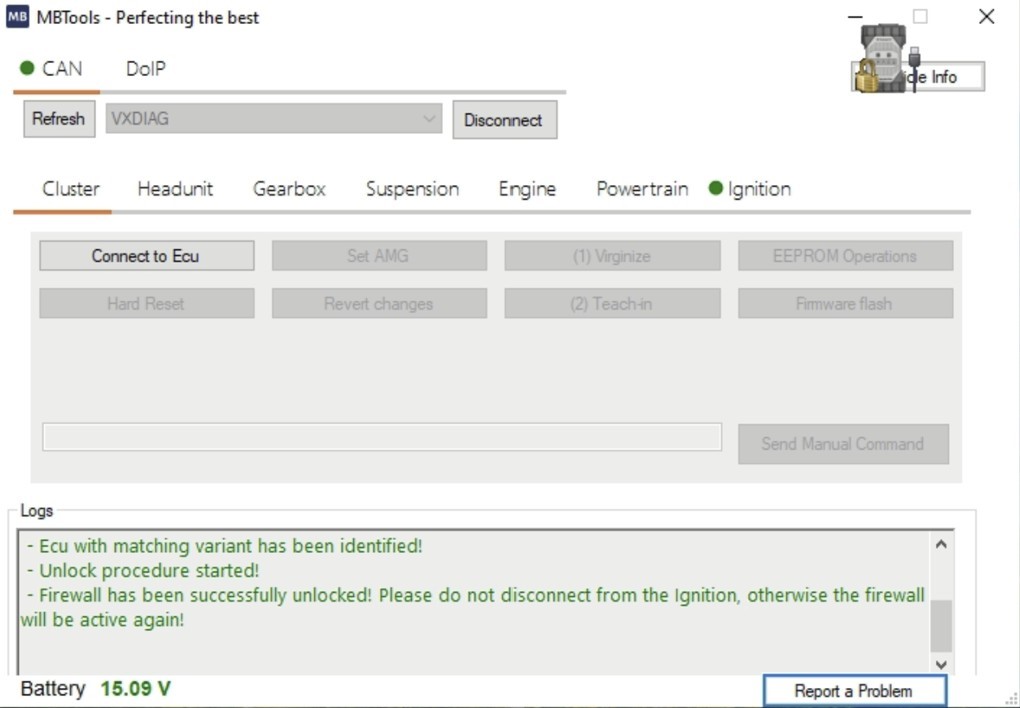
- Now you can lunch MBTools App and you will have VXDIAG available.
- If you also installed the Benz C6 drivers, it will show up in the list as C6 (fast). Ideally, you should use this mode, as it is much faster and reliable than in Passthru mode (such as above)
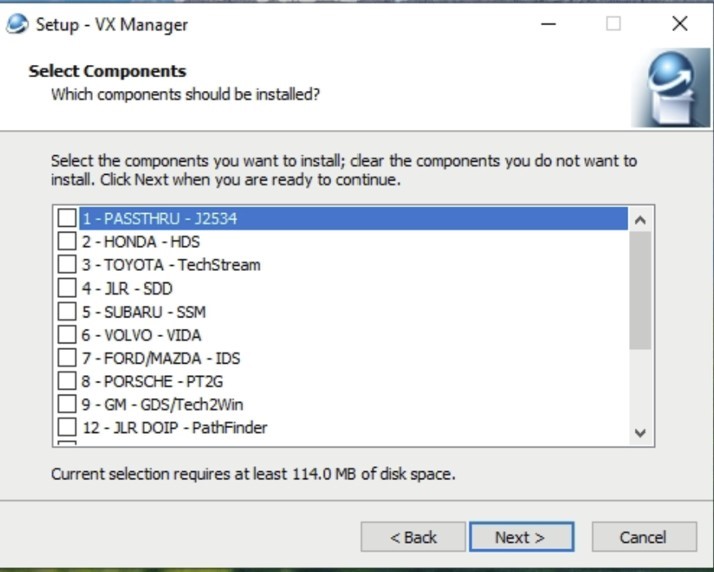
Note:If you have Xentry XDOS installed, please select also the Mercedes component.

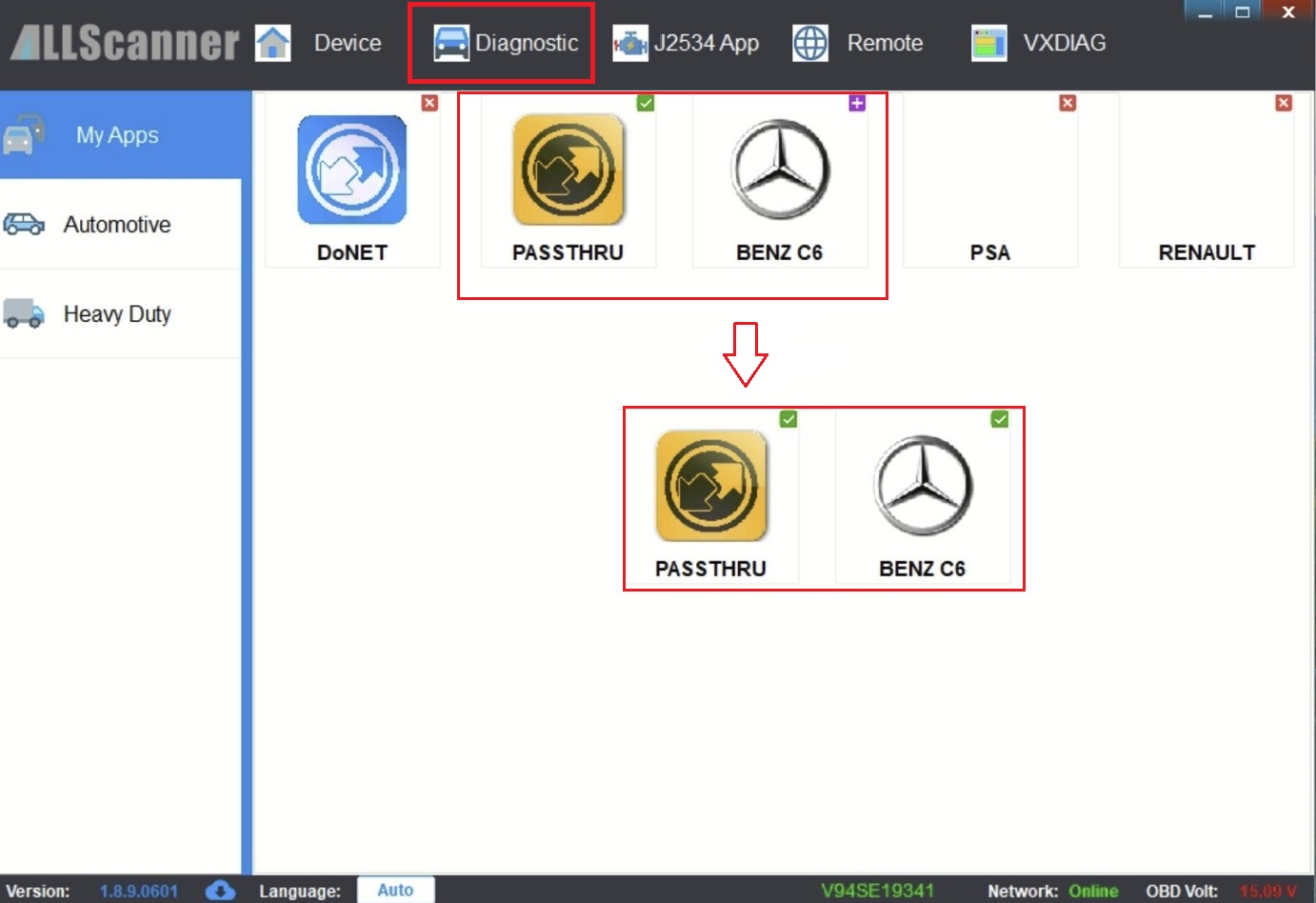
If PASSTHRU and BENZ C6 devices status are a green checkmark it mean they have been installed.
Othervise if the devices status are a purple plus it means you have to uninstall and reinstall them.
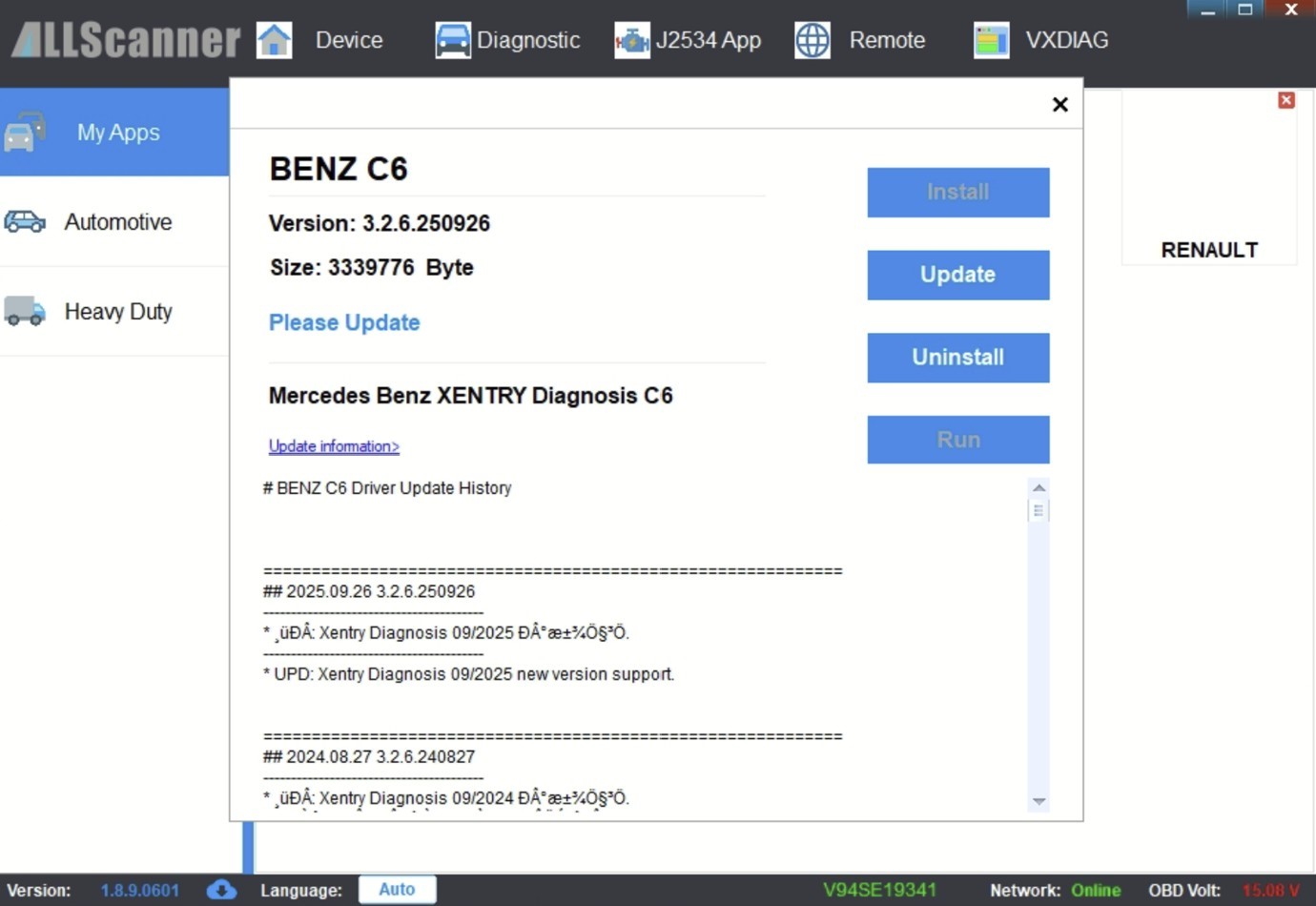
Note: Both devices should have green status.
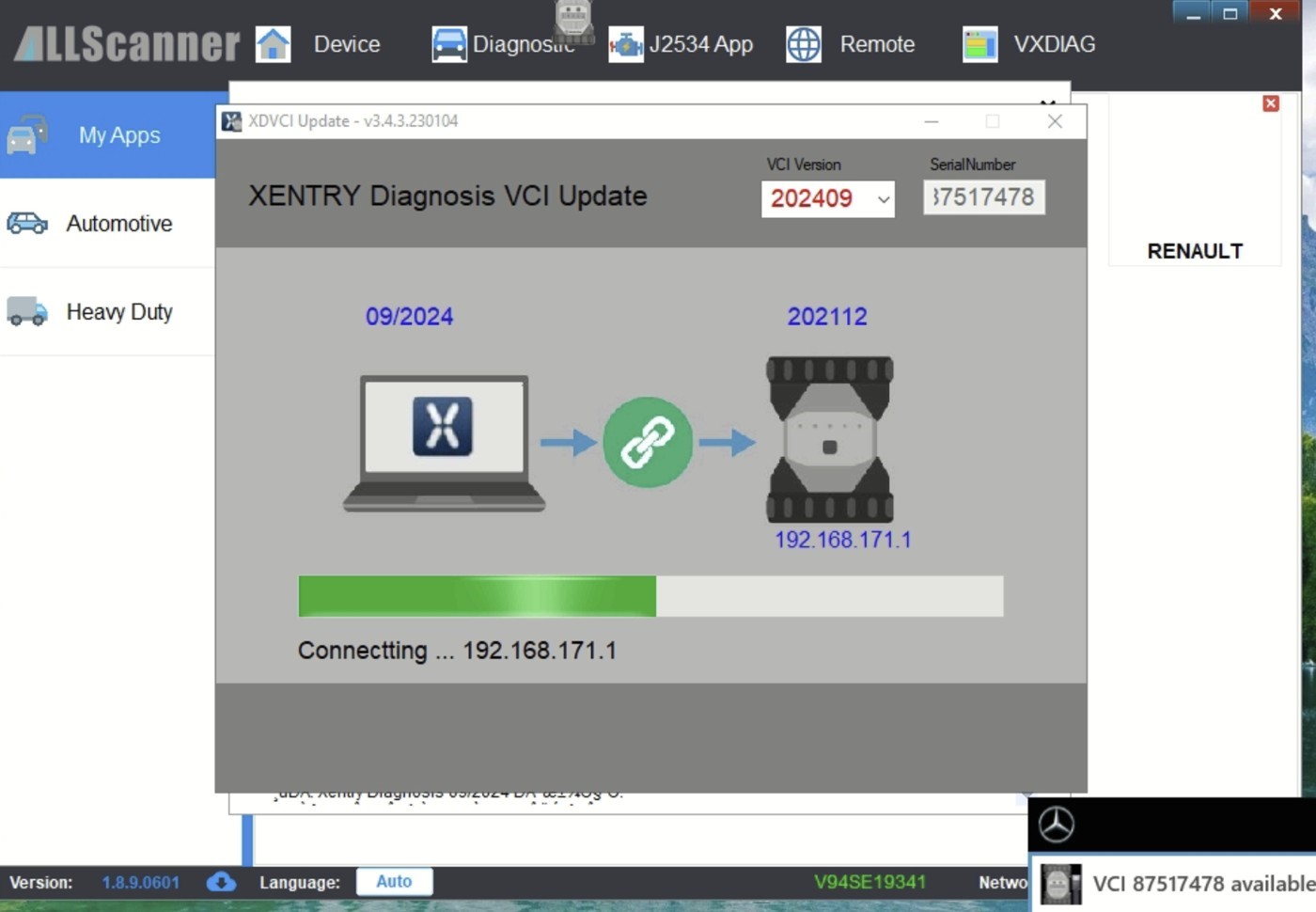
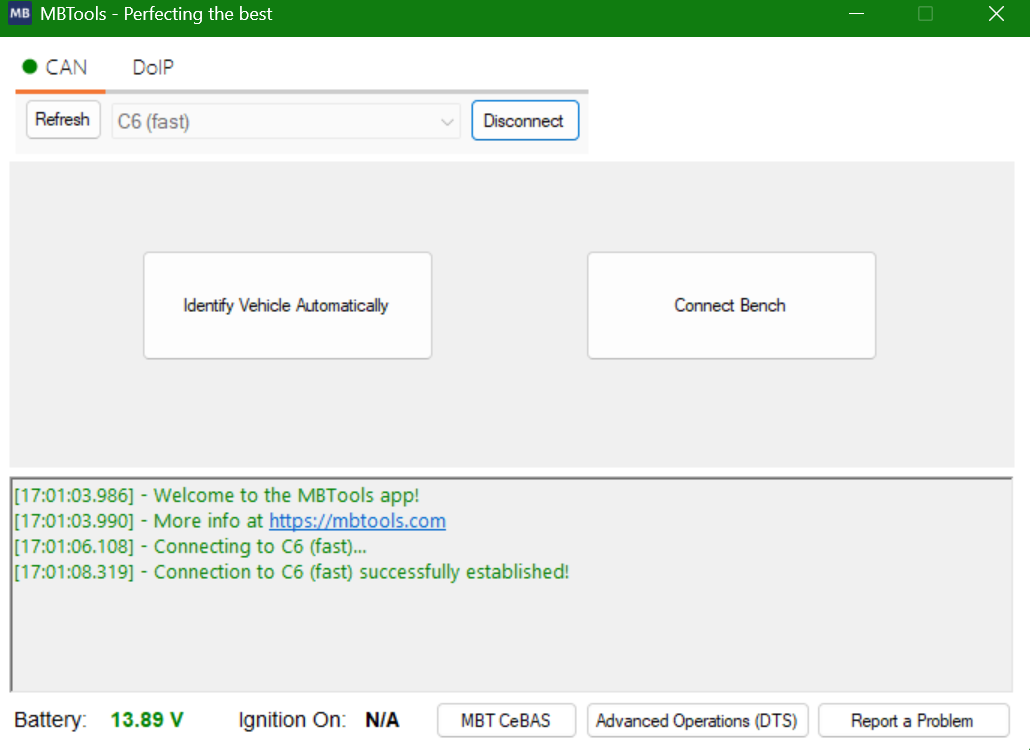
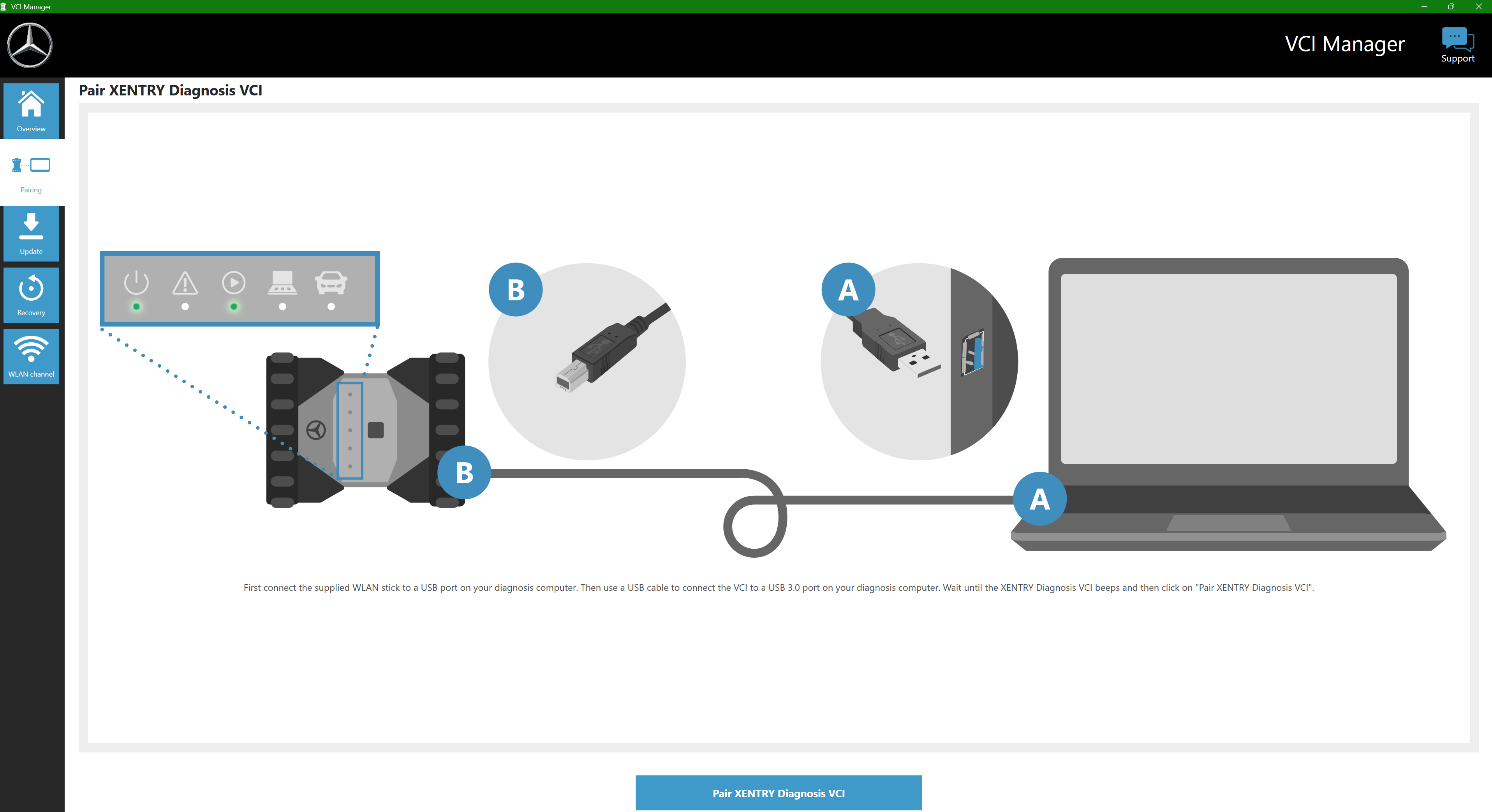
C6 is straight-forward to set up, because the Xentry VCI Manager applies the settings for you.
IMPORTANT: Will only work if Xentry is installed and properly set up!!!
- Pairing in Xentry VCI Manager
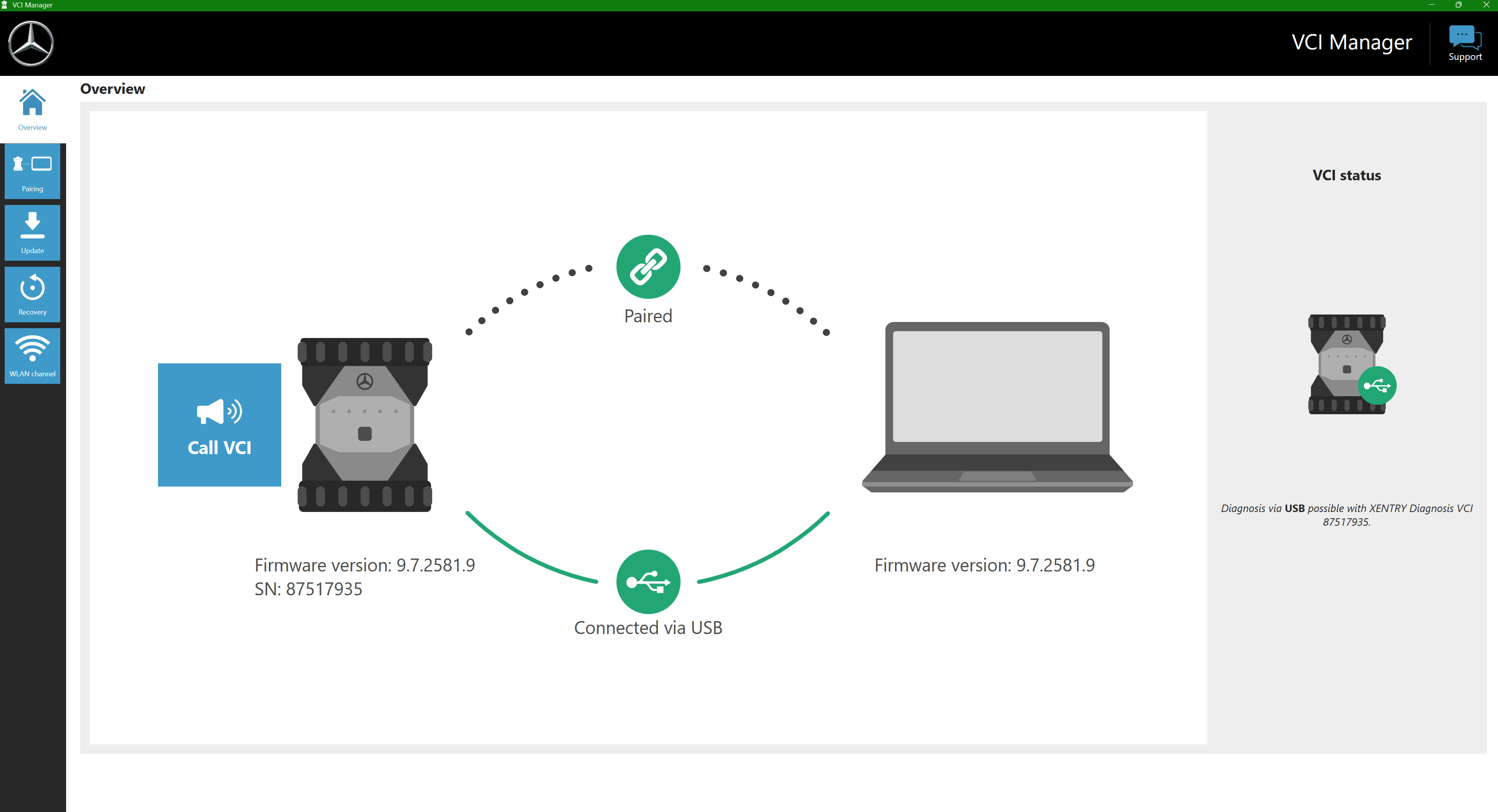
- Once paired successfully, everything should show up in green
- Sometimes, the firmware on the diagnostic device must be updated. Xentry VCI Manager will take care of that for you.
- Opening the MBTools app, your C6 is now ready to be used
- Install the DoIP drivers from the MBTools launcher
- Set the correct IP address (You do not need to do this step for Bosch C6 or VCX!!)
- Do this from Control Panel \ Network and Internet \ Network Connections
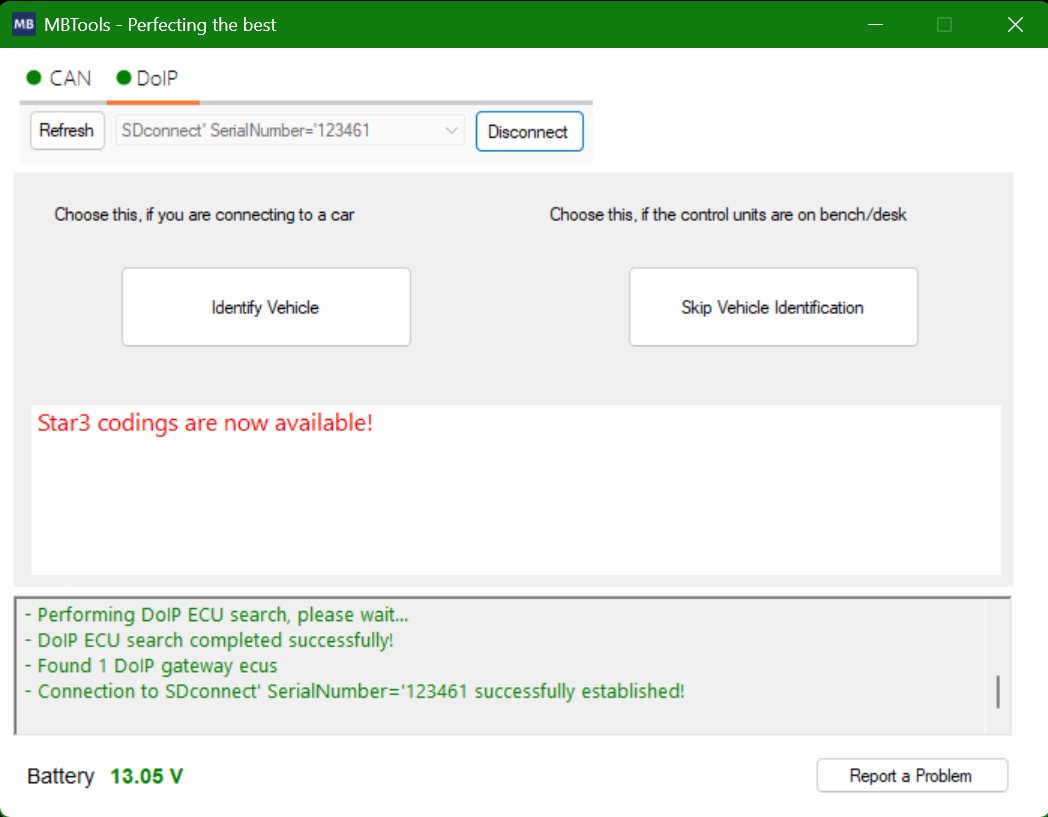
- Run the MBTools App. Your DoIP device will now show up in the DoIP tab
- Firewall considerations
- Recommended:Create a firewall exception rule for your SDConnect. This maintains security while allowing communication.
- Alternative:Temporarily disable your firewall (less secure, but easier for troubleshooting).
- Antivirus software
- Depending on the Antivirus, you may need to add an exception rule for your SDConnect, or temporarily disable your antivirus.
- Consult your antivirus vendor's documentation for specific instructions.
Troubleshooting
I am unable to download the drivers for my diagnostic device from the MBTools Launcher.
- Please ensure that the MBTools Launcher is able to communicate with our servers. Your ISP, firewall rules or antivirus may limit this.
- Try to use another PC, or use another internet connection, such as Mobile Hotspot, LAN, Wi-Fi connection, etc.
- Generally speaking, if you are able to read this page, it means your computer is able to establish a connection to our servers.
No diagnostic devices show up in the MBTools app, after installing the drivers.
- For SDConnect:
- People often have the drivers installed already, from the past. Please ensure you reinstall them, from the MBTools Launcher.
- Please be sure to consult the "Additional Tips" section from above.
- For J2534 devices, such as Tactrix Openport, VAS5054A, etc:
- These devices have a prerequisite of installing EDIC 1.20. EDIC is normally installed automatically, during the driver installation from within the MBTools Launcher.
- Some reasons which might make the EDIC installation to fail:
- When EDIC is already installed, the driver installer, will uninstall it. You must run the driver installer again, to install it again.
- Sometimes, it is possible for EDIC to not have been properly uninstalled. In this case, if you run the EDIC installer, it will simply crash right away, with no error messages.
- In this case, uninstalling it from your computer's Control Panel will also not work.
- To get around this, you must delete the entry of your EDIC installation from the pdu_api_root.xml file. We have detailed this a bit more, in the Troubleshooting section of our Help & Support page
- Another reason which might cause the EDIC installation to crash right at the beginning, with no error messages, is when a newer version of EDIC is already installed, such as EDIC 11.26
- Please keep in mind that the MBTools app is not compatible with EDIC 11.26 and you must first uninstall it from your computer's Control Panel, before trying to install the J2534 Pass-thru drivers.
- We understand that this troubleshooting procedure can be exhausting, which is why we offer remote assistance to fix these problems, for an additional fee.
- The most straight-forward solution in such cases, is to try installing the drivers on another Windows 10 PC, where you know you haven't installed any VCI-related drivers before.
- Please note that the vendor of EDIC drivers is not us, it is Softing, and we have no control over how EDIC is installed.
I have selected the diagnostic device, in the MBTools app, but when the program attempts to establish a connection, it tells me that the device is already in use.
- A diagnostic device can only be used by a single application (such as the MBTools app, Vediamo, Xentry, etc) at a time. Please close any other application that might use the VCI, then try again.
- Sometimes, restarting your PC might help.
- In some rare cases, conflicting drivers might also cause this to happen. Be sure to uninstall any other drivers you may have installed in the past, then reinstall the drivers, as per this guide.
- If everything else failed, consider trying to install the drivers on a PC where you know that no other diagnostic device drivers have been installed in the past.
I am unable to establish a communication with a VCI or the car
- I am using VXC SE, VXDiag or Bosch C6 clone.
- When using one of these diagnostic devices, people often overlook the installation of the drivers through the MBTools Launcher.
- When that happens, the list of diagnostic devices in the MBTools App will display D_PDU_API_Bosch_MTS6532 (instead of VCX SE, VXDiag, etc).
- As a consequence, you will either be unable to establish a connection with the VCI, you will be unable to establish a connection to your control unit (such as your Instrument Cluster, Headunit, etc), or if you somehow manage to establish the connection, the codings will fail, with time-out error/warning messages.
- I am using Tactrix Openport
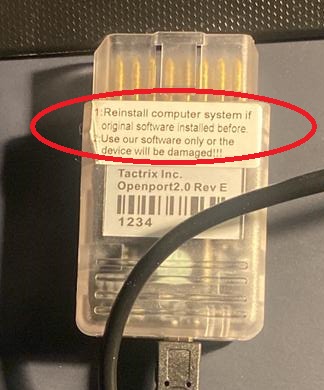
Some Tactrix Openport devices come with a label attached to them, saying to only install the drivers provided by them.
In these cases, these are low quality devices, and our drivers will not work.
When buying one, please look for it to not come with this label attached on it, or recently, the sellers have started removing this label entirely.
To ensure guaranteed compatibility, please buy your Tactrix Openport from our qualified independent partner Emtronika.
Additional steps
- Please refer to your VCI's documentation for device-specific troubleshooting steps
- Consider our paid remote assistance for complex issues.
Important Considerations
- VCIs are powerful tools; always understand the functions you are performing to avoid potential damage to your vehicle. Consult a qualified technician if you are unsure.
- Some advanced features may require additional software, tools, or security clearance from vehicle manufacturers.
- In this guide, we aim to be as accurate as possible. However, please remember that real-world scenarios can differ slightly.
- Should you feel that something is inaccurate, or you would like to add something not covered in this guide, please reach out to us.
- Ready to continue? The next step is to visit our Getting Started page, enter your VIN, and start coding!